User's Guide Supl.biz
Part 1
1. Registration and profile setup.
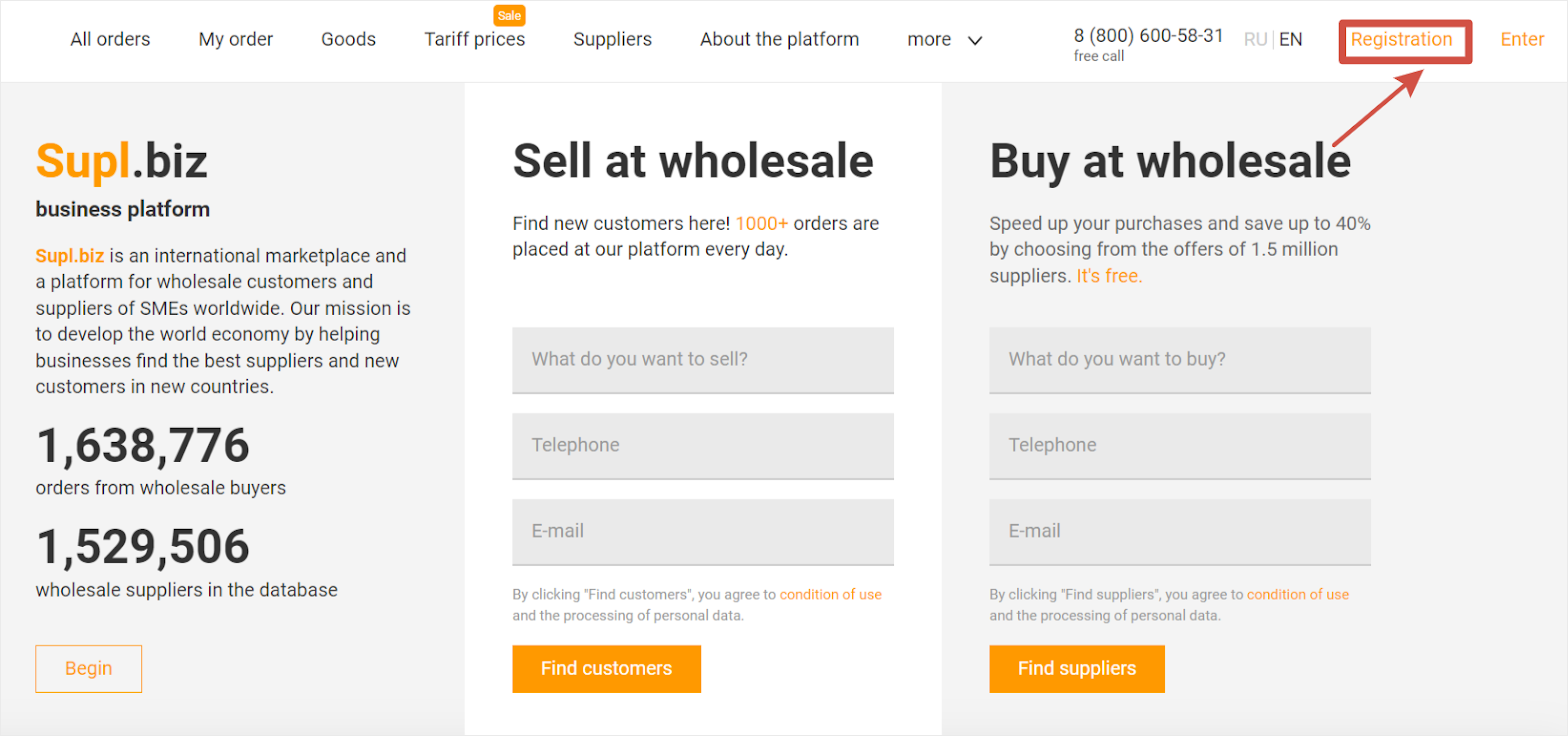
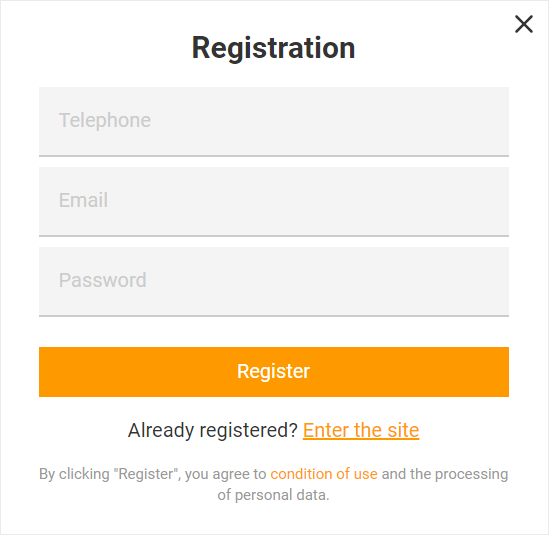
2. Fill in all empty fields, enter an active email to check the message from the Supl.biz and create password, and then press Register.
3. Confirm your registration in your mailbox and follow the link in email.

4. Go to Customisation of Settings and update your profile.
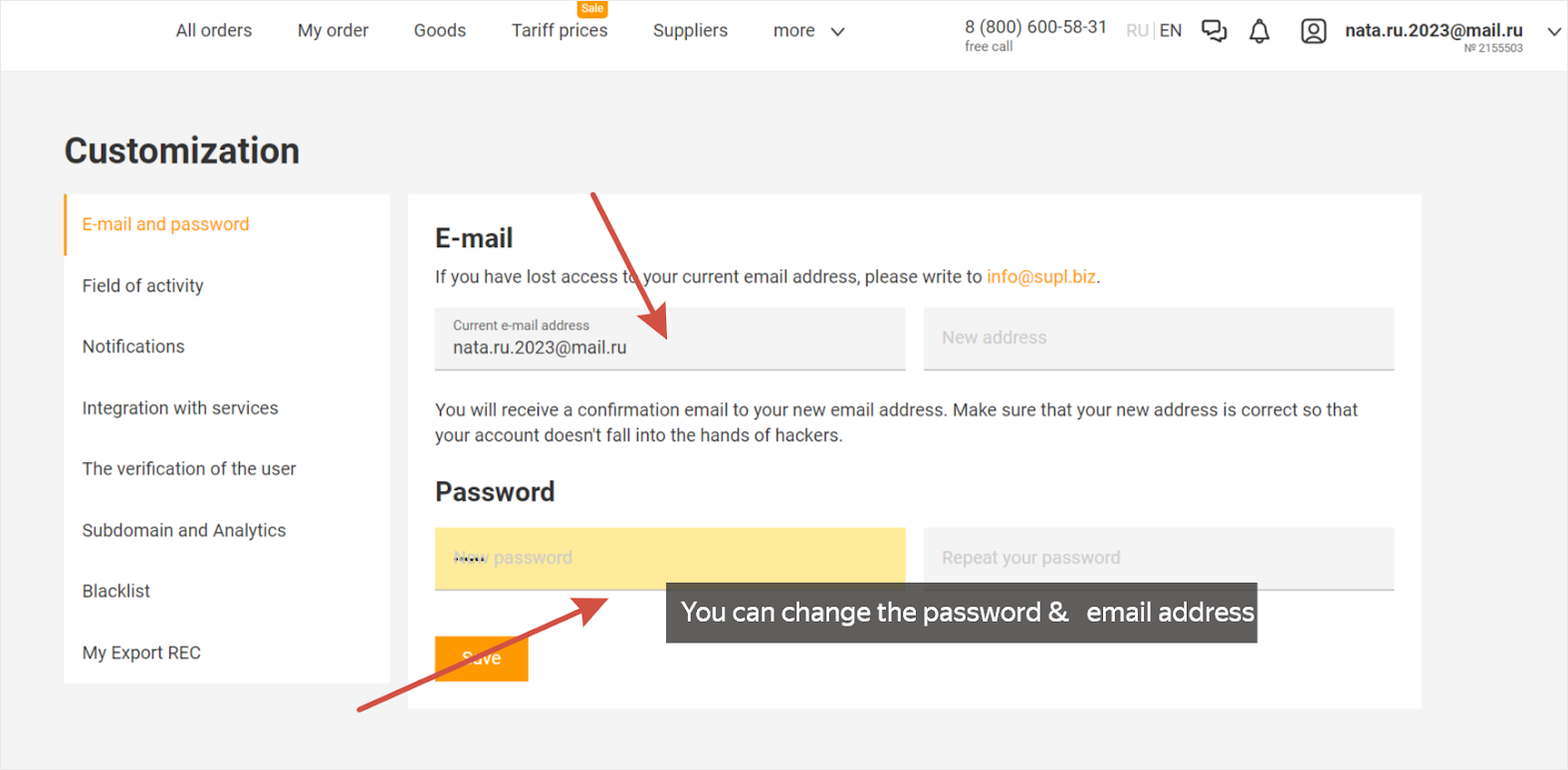
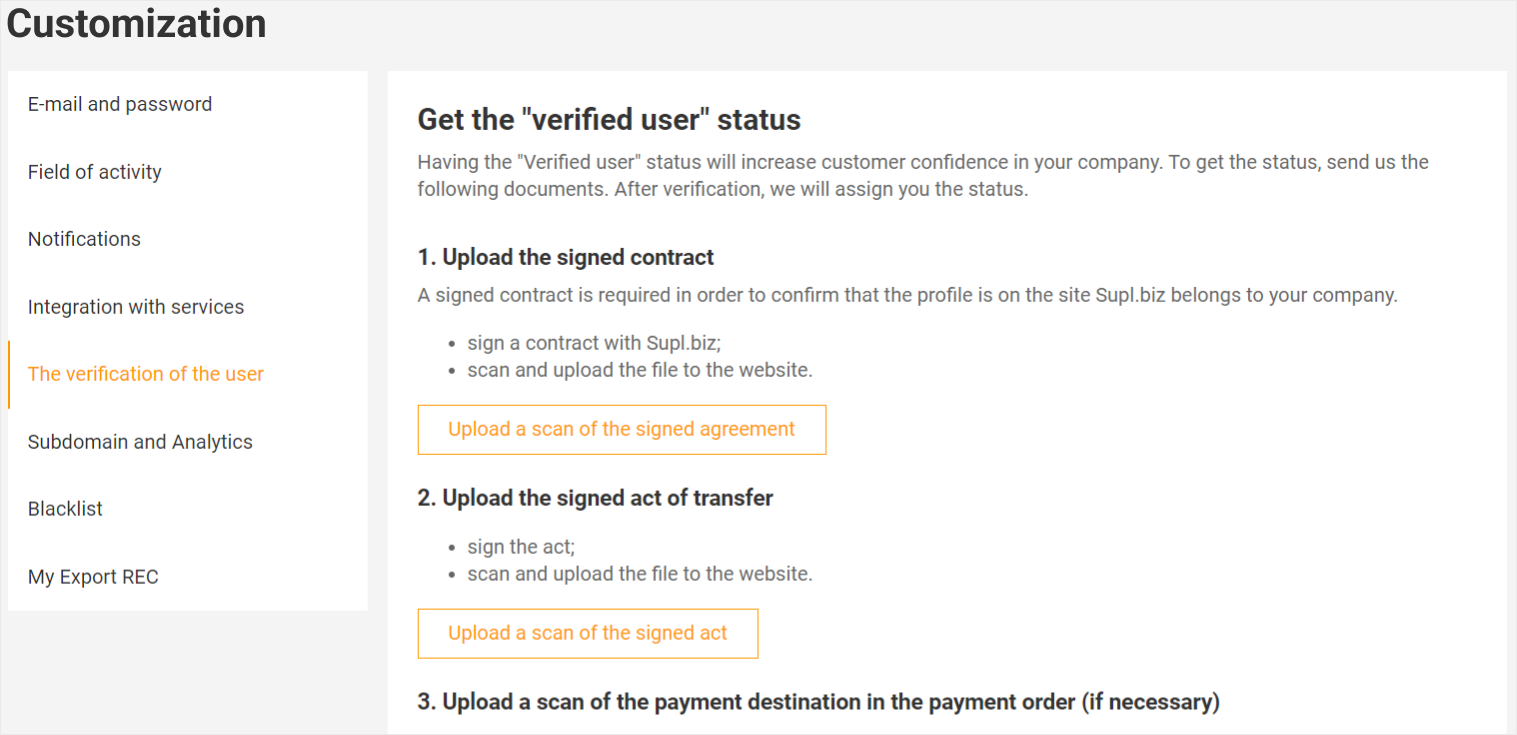
- E-mail & password.
- Field of activity. Сhoose one field of activity, your settings will determine which orders you will receive, in which field of activity and from which regions (if you are a Supplier).
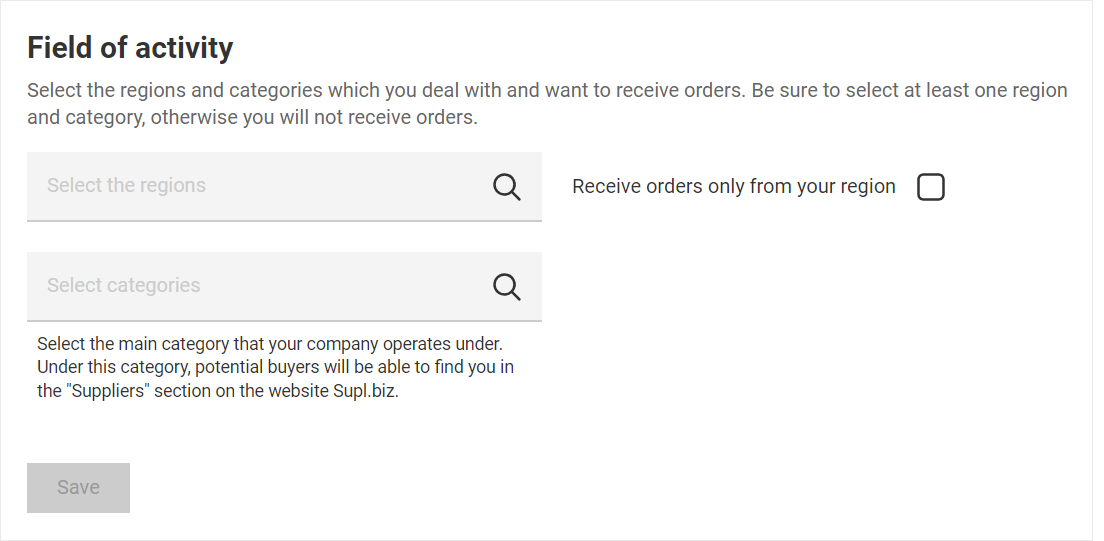
To add another category & region, you should contact your local Supl.biz manager.
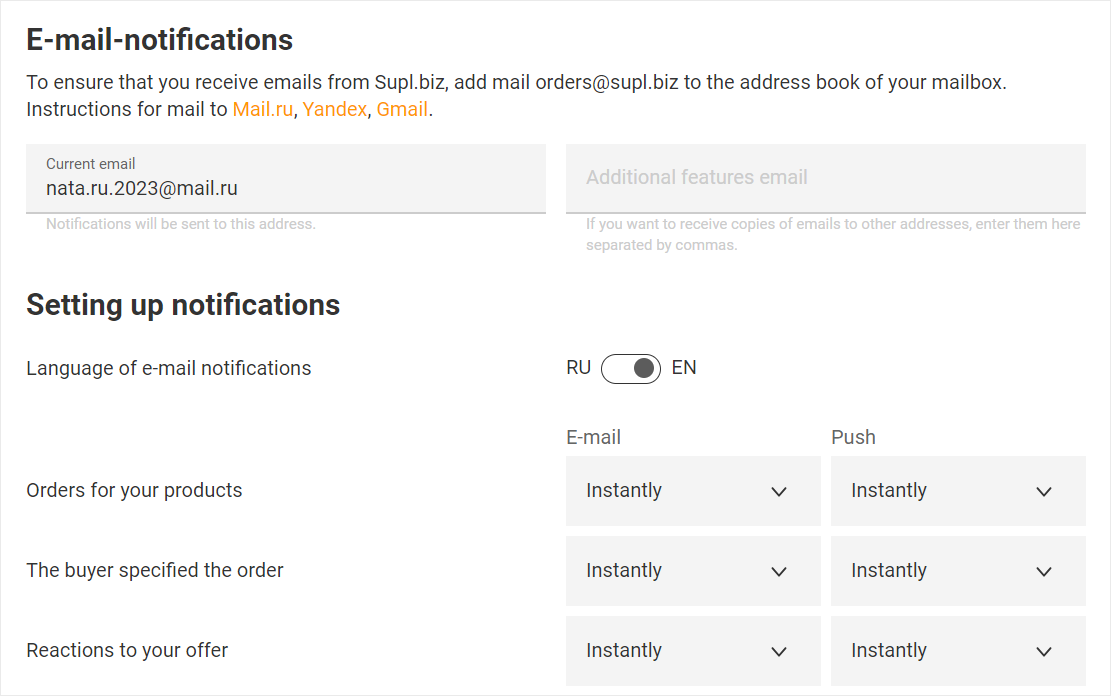
- Notifications. You can add additional email addresses and set up all notifications from the platform.
- You can create your own subdomain with brand name (available on paid Tariffs).
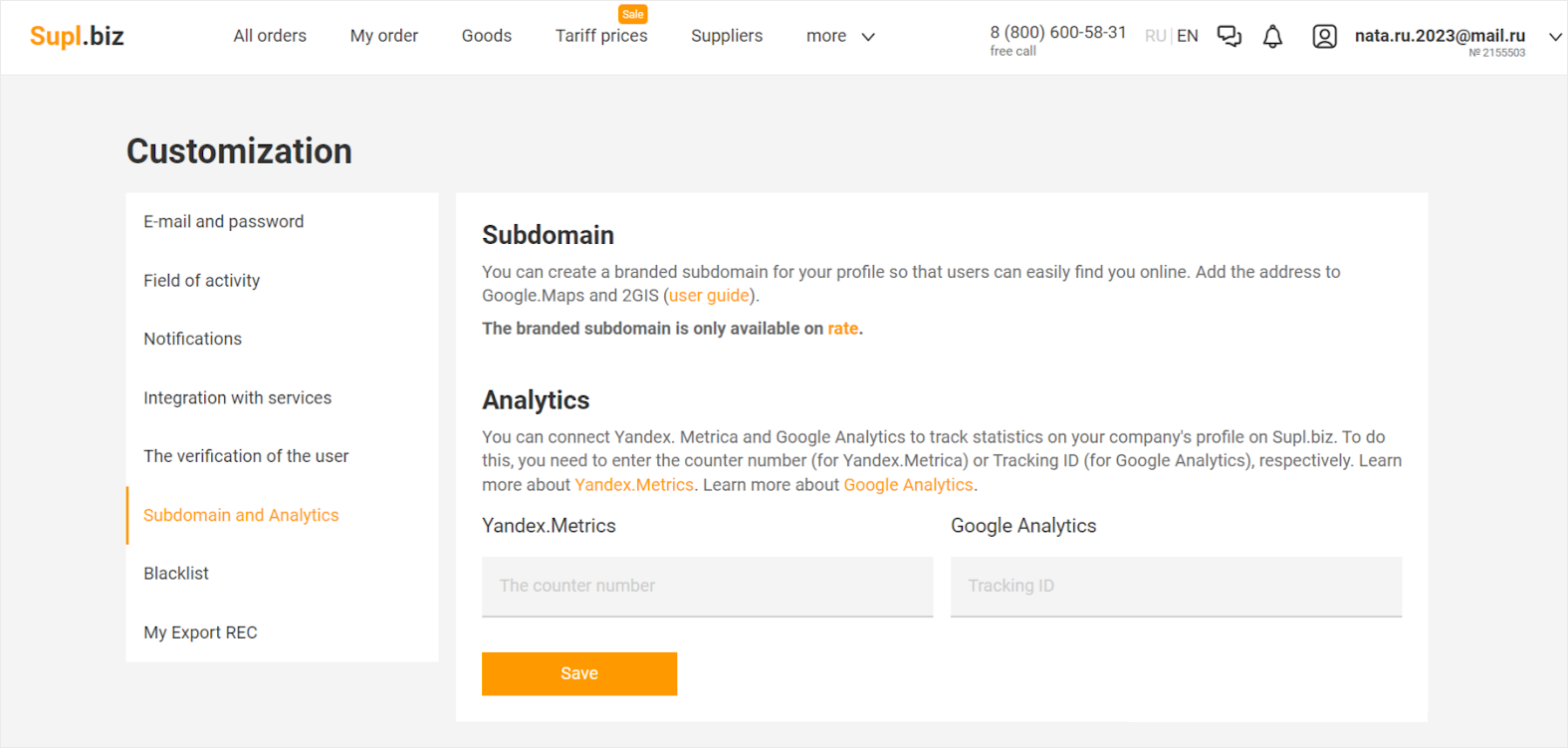
Blacklist. Provides you the opportunity to exclude those customers, from which you do not want to receive the messages and do not want to work.
Verification of the user. Provides you a status of verified user on the platform and gives your future customers confidence in working with you.
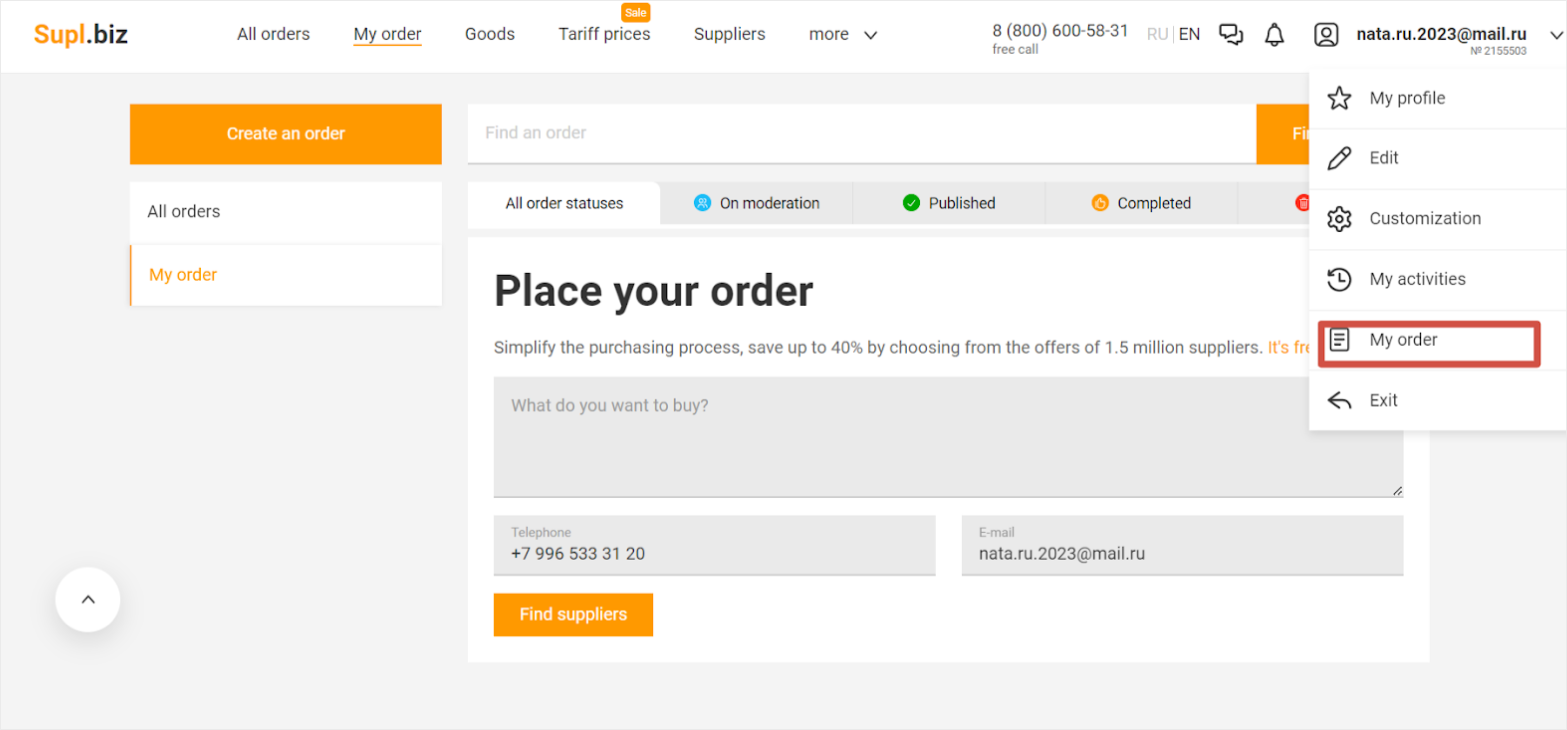
5. My order.
In this tool you can leave requests for the products and services for your business. Placing orders is for free for each user of the platform.
6. My activities.
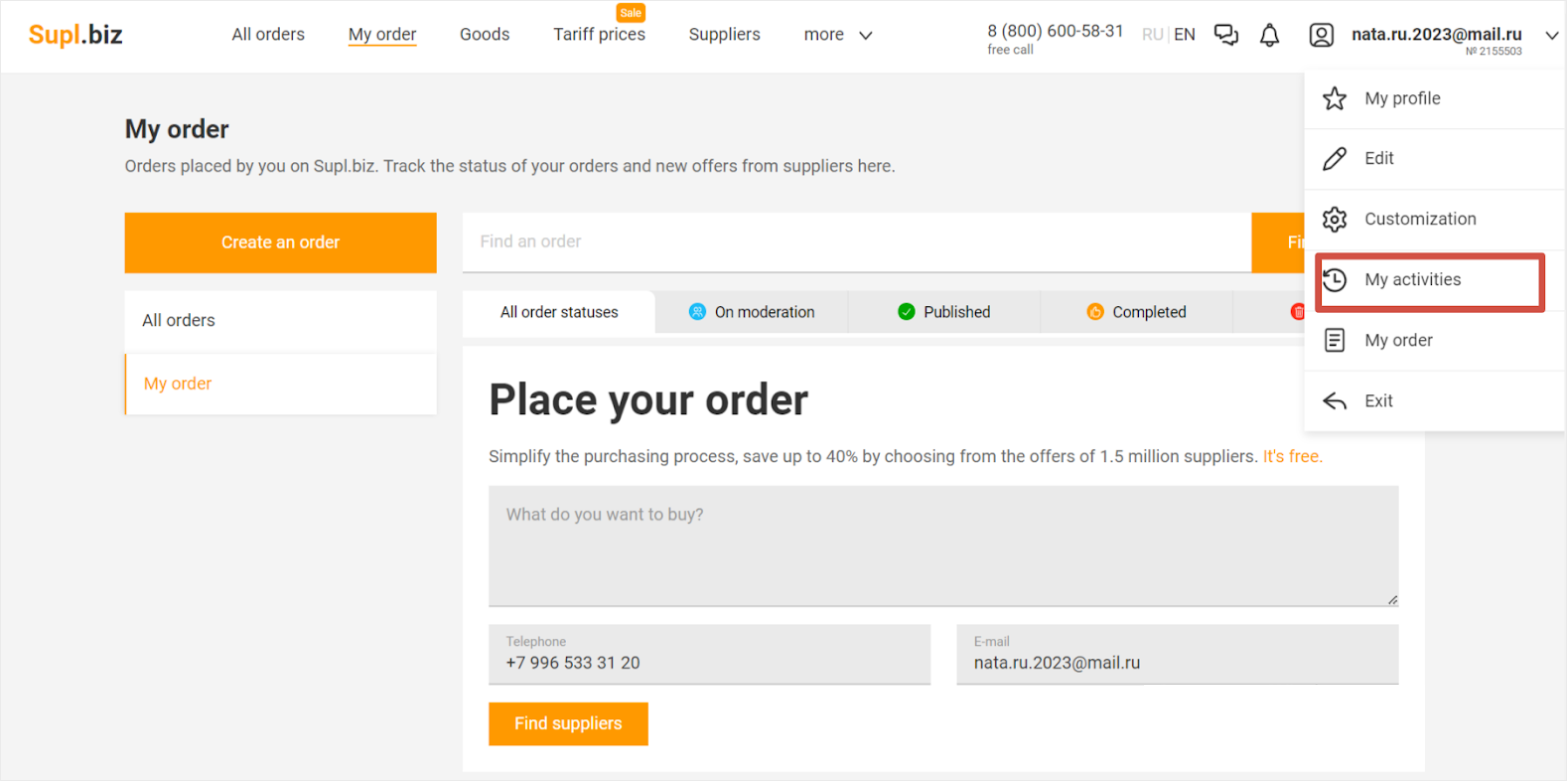
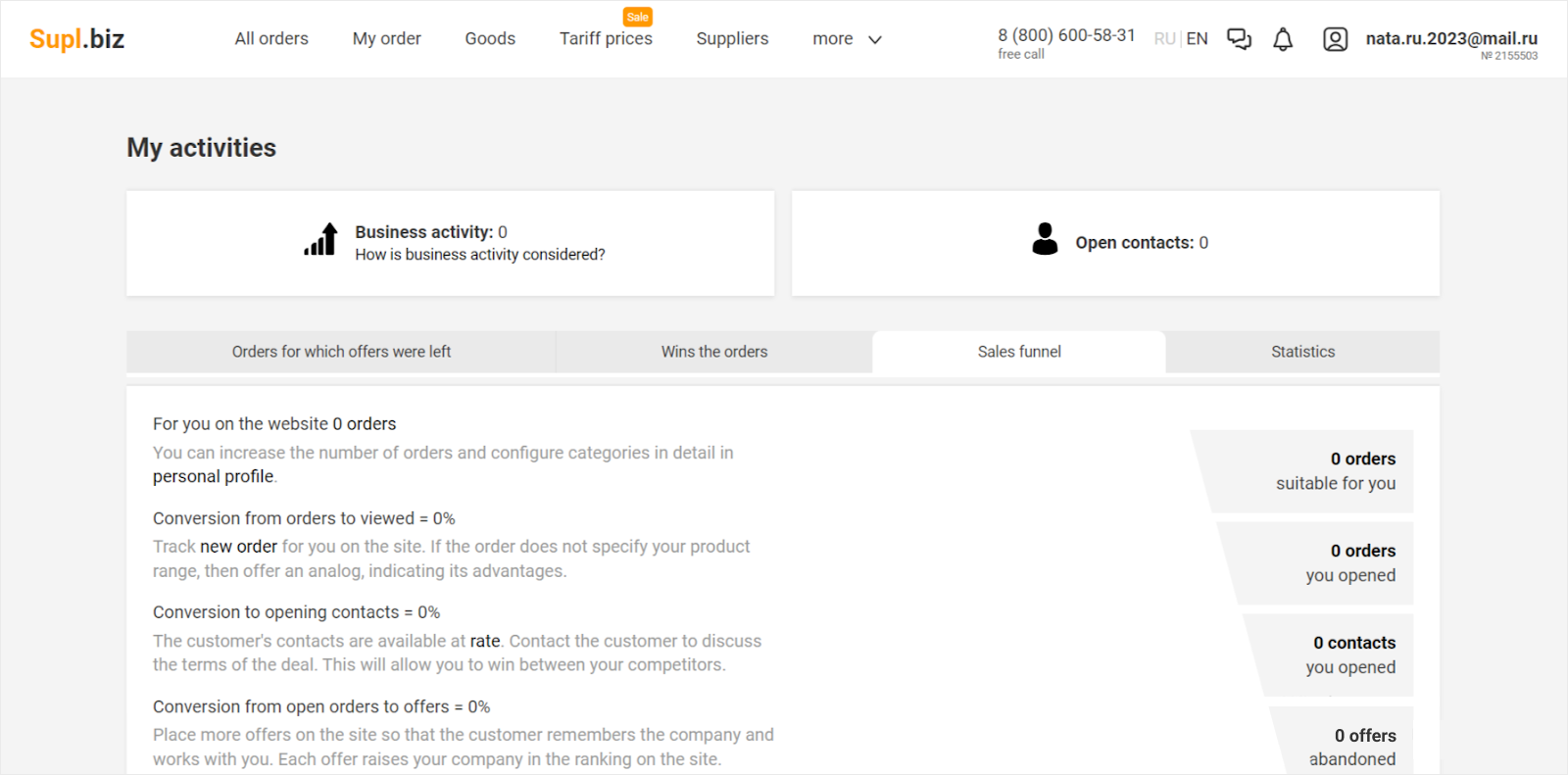
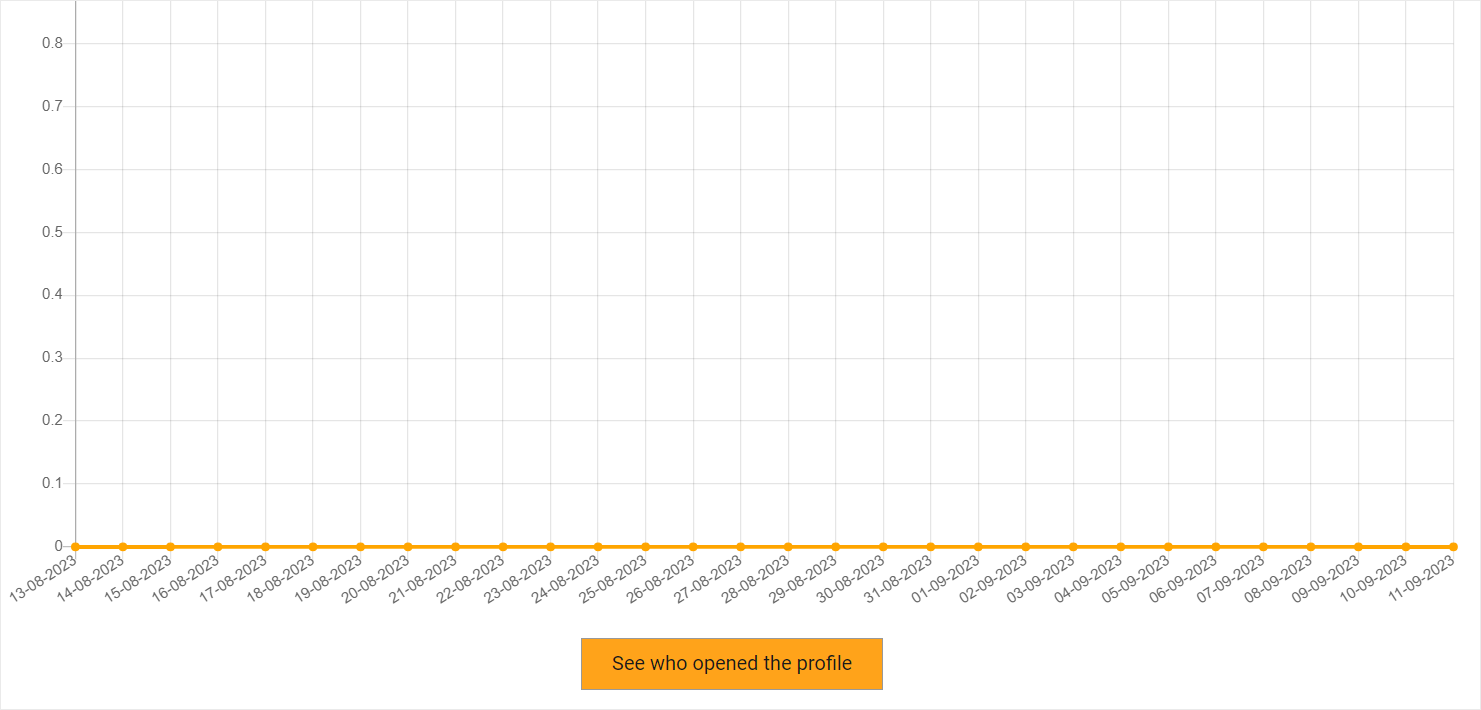
Shows you actions on webpages of Supl.biz, in Statistics you can have tables\diagrams for your business & opportunity to see which companies opened your profile.
Part 2
Filling the company's website profile
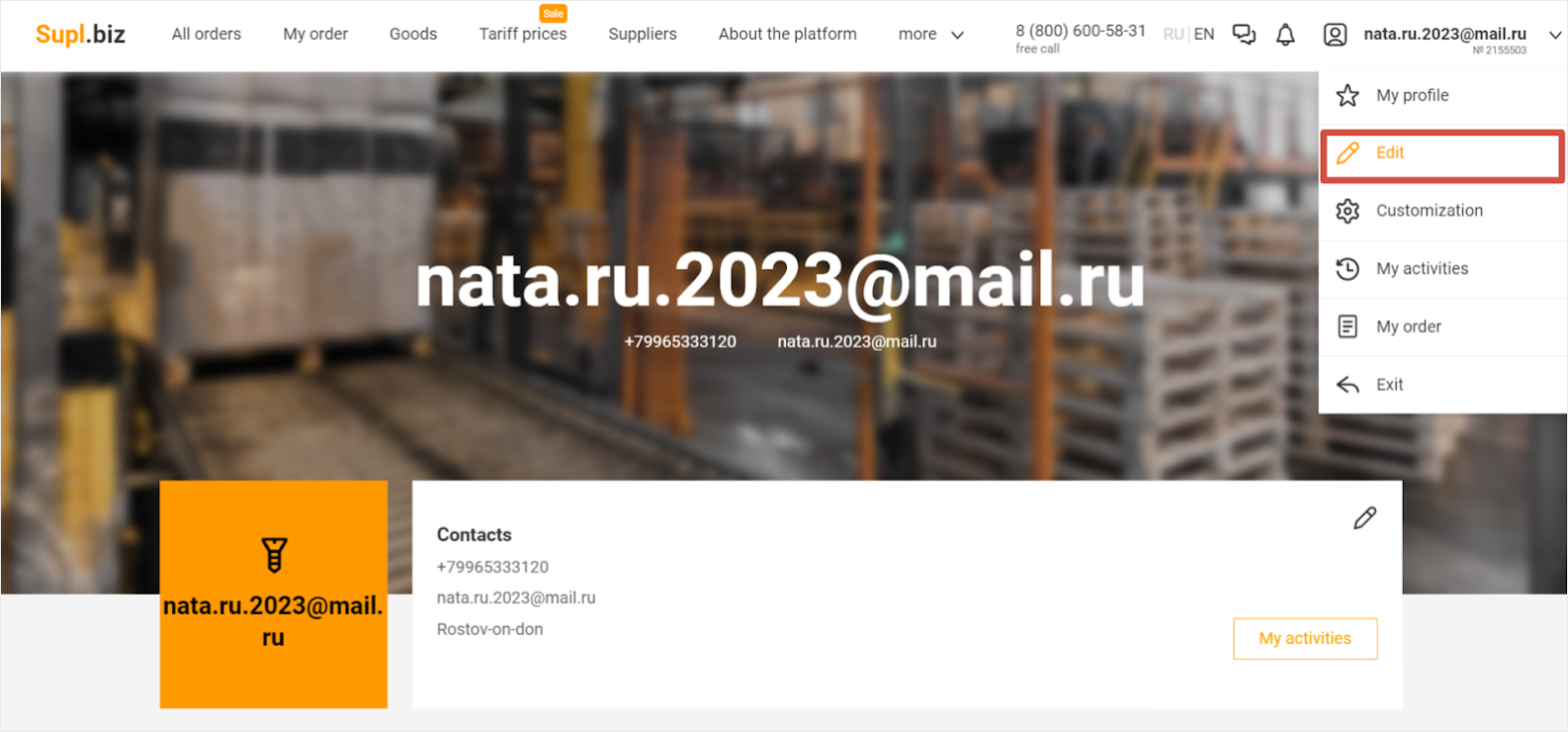
1. Go to the edit mode to fill in the company’s profile and add goods into the catalog.
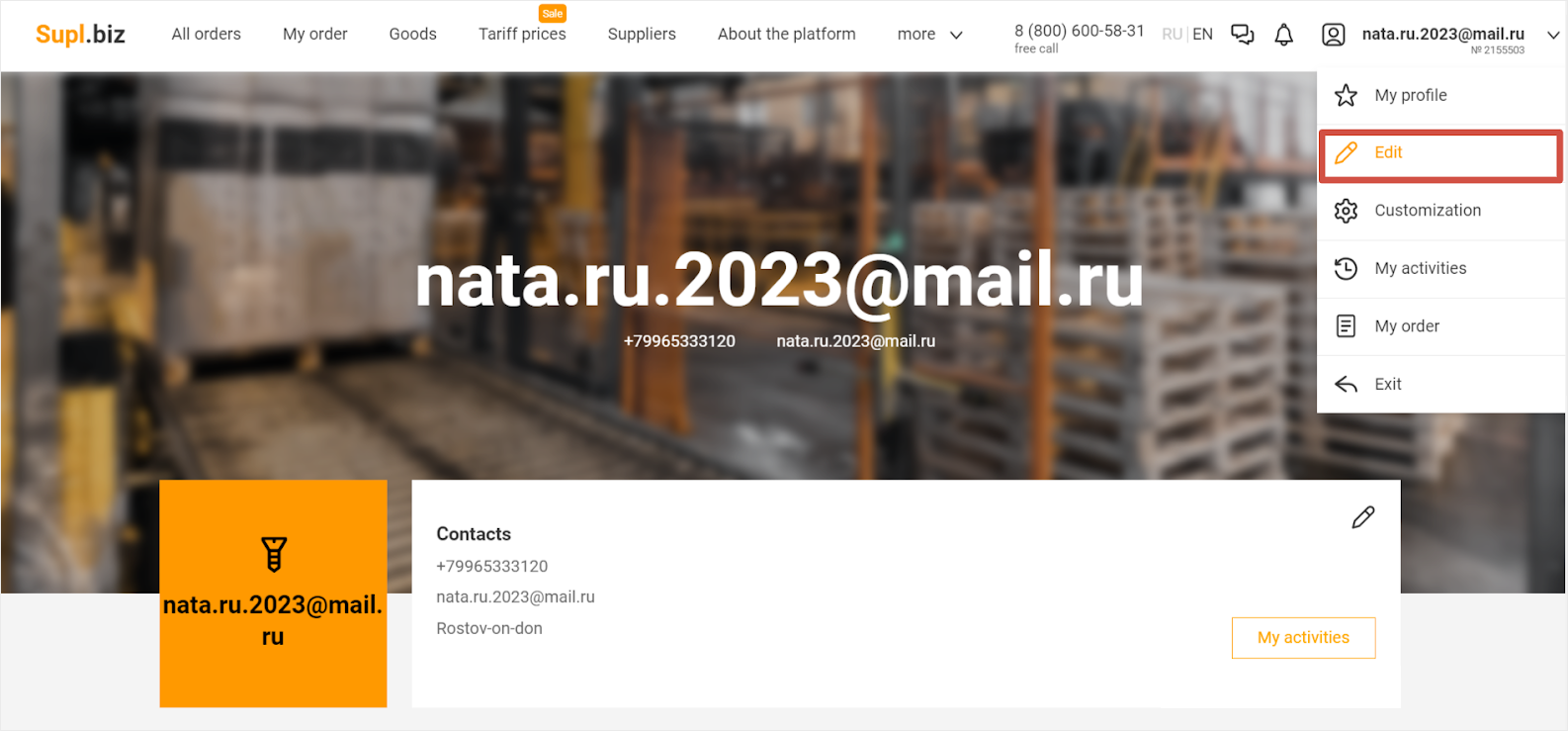
2. In this part you can fill in a profile and create a website for your company in 10 minutes to attract wholesale buyers. Paid users can create a branded subdomain.*
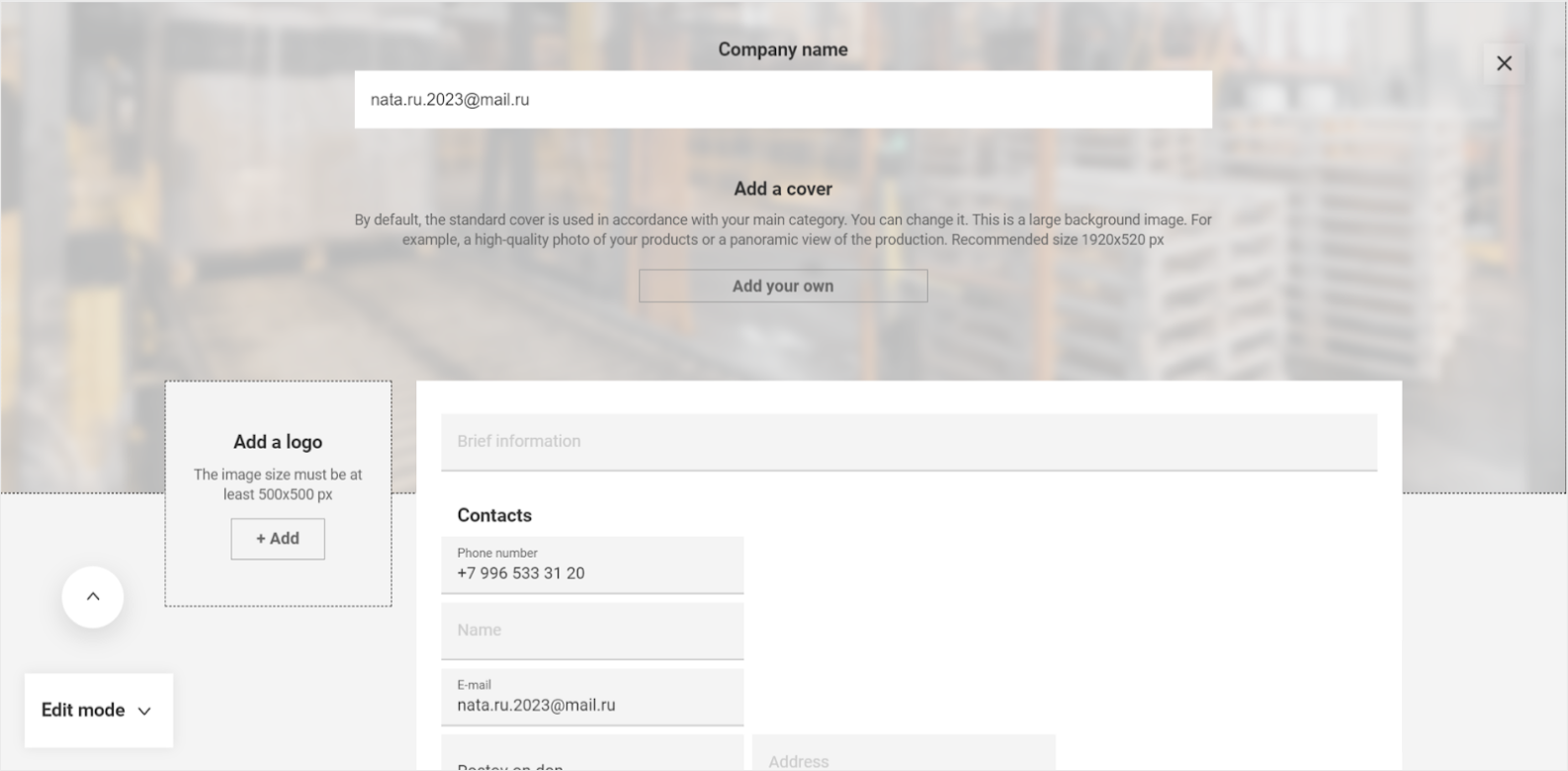
*On demo version your profile looks like a page with number https://supl.biz/en/profiles, but on the tariff you will have a website with catalog on subdomain & can promote it as your own webshop https://malekbaby.supl.biz.
3. You can use the tips to complete the profile on 100%.
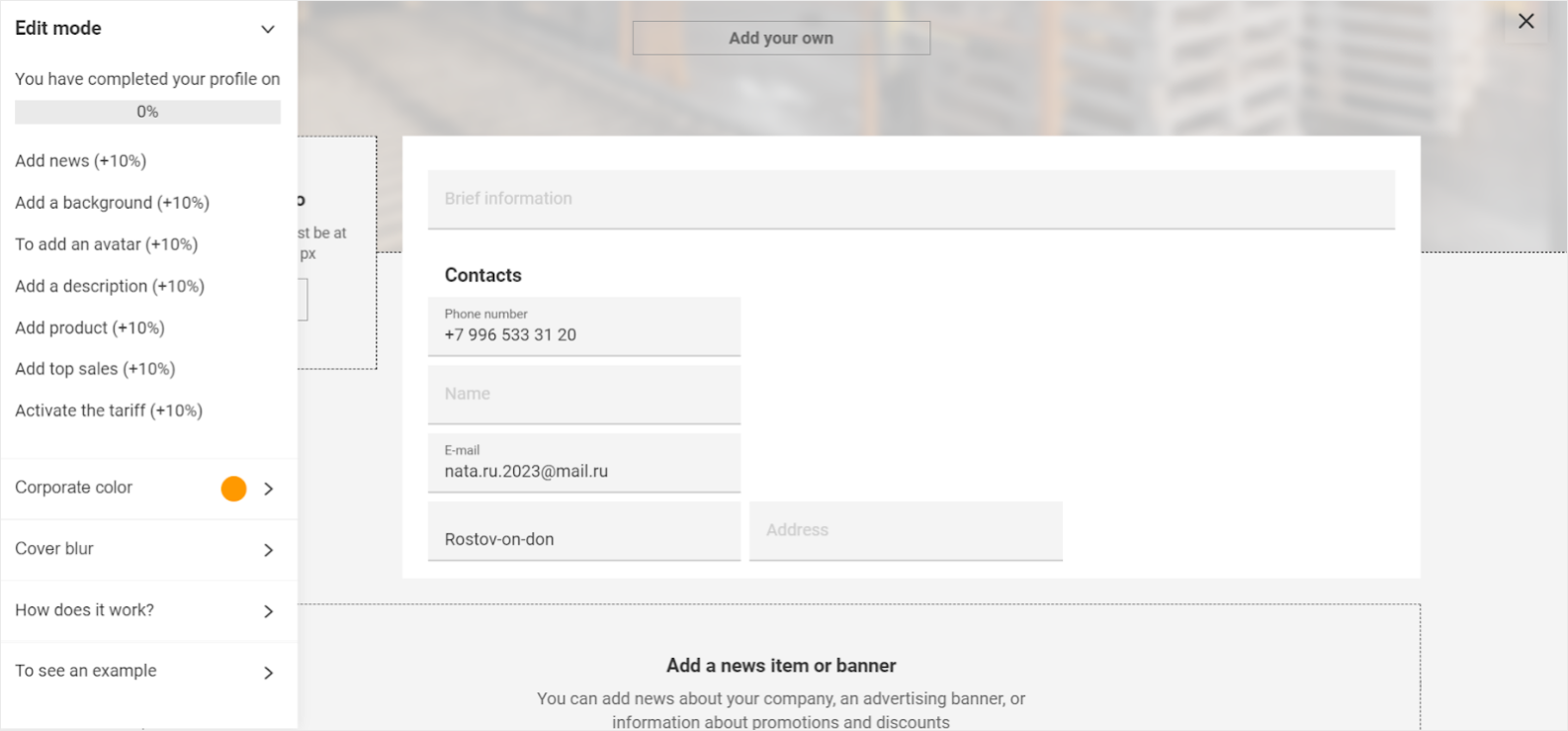
4. You can add news with picture & text, add a banner with action, advertisement or special prices to attract customers to your product.
When placing the banner you need to add a link of the product from the catalog on your profile.
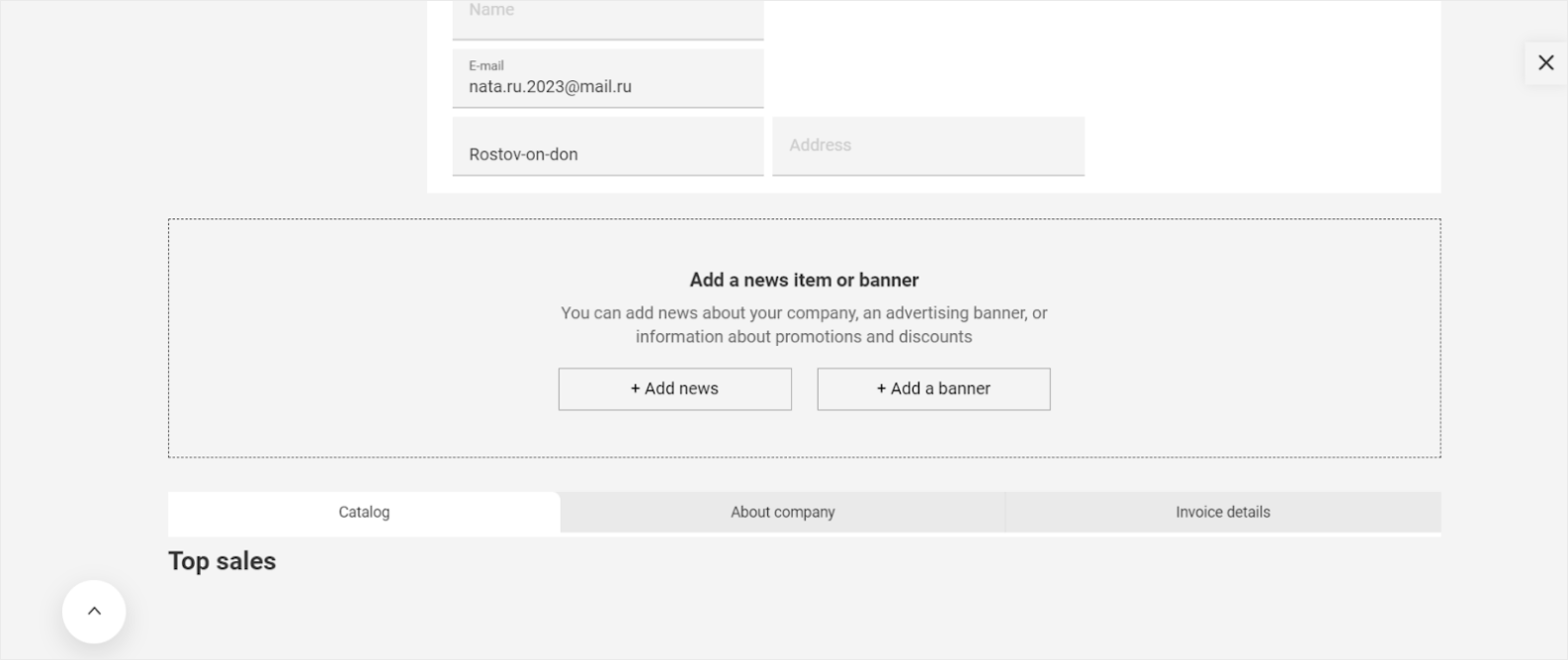
Example:
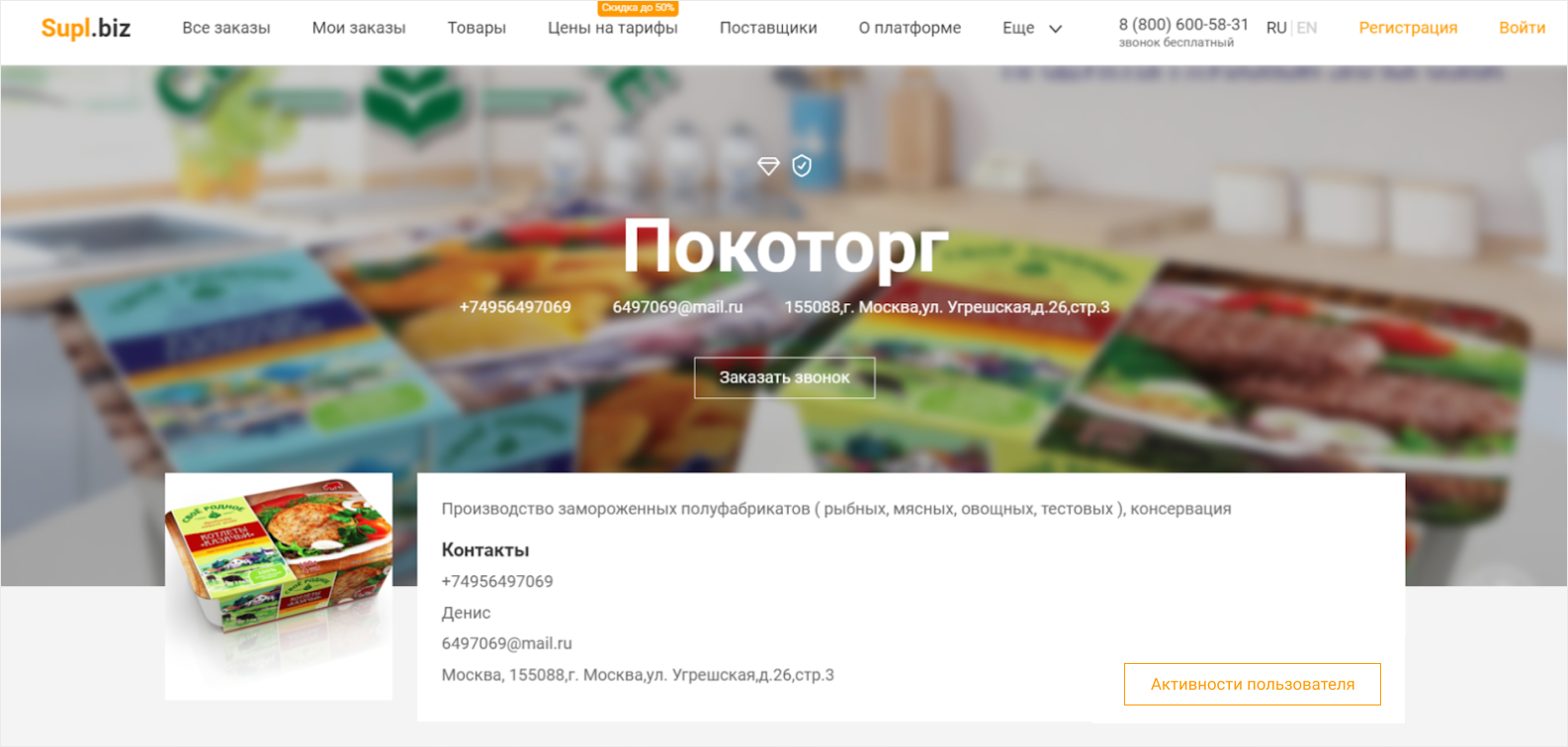
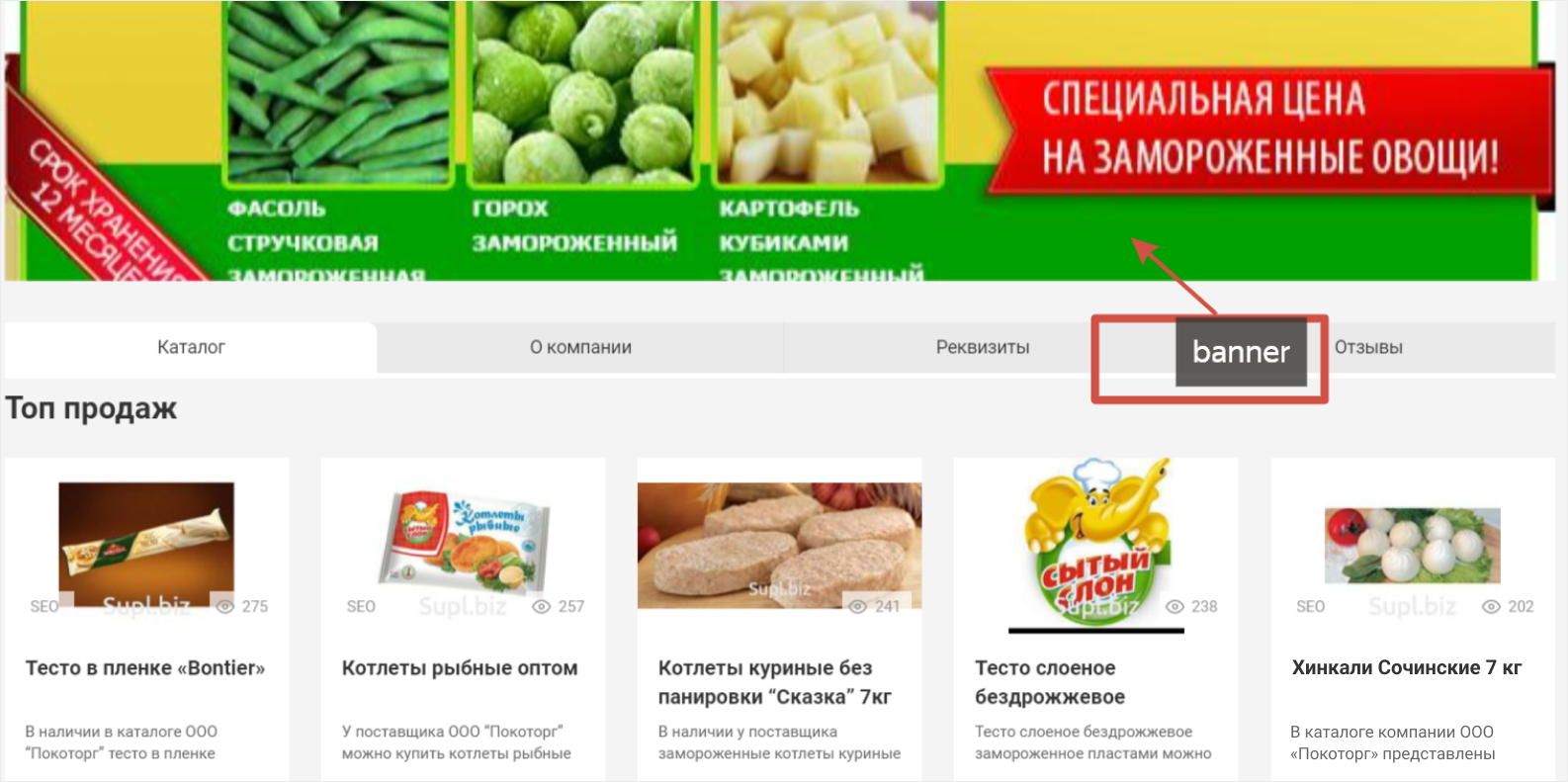
*This is how the customers see the profile of the company on paid tariff and on top range in catalog.
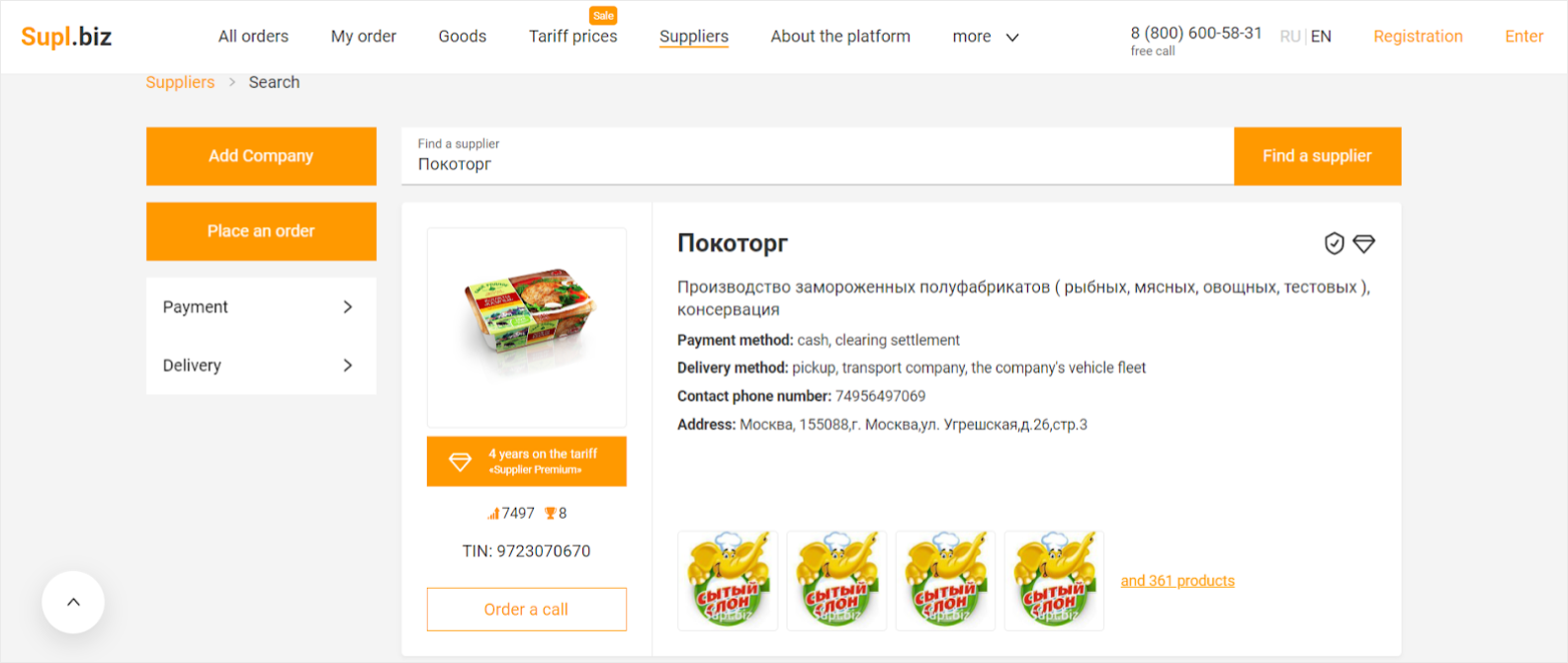
If you do not have branded pictures\logo yet, your profile will be standard.
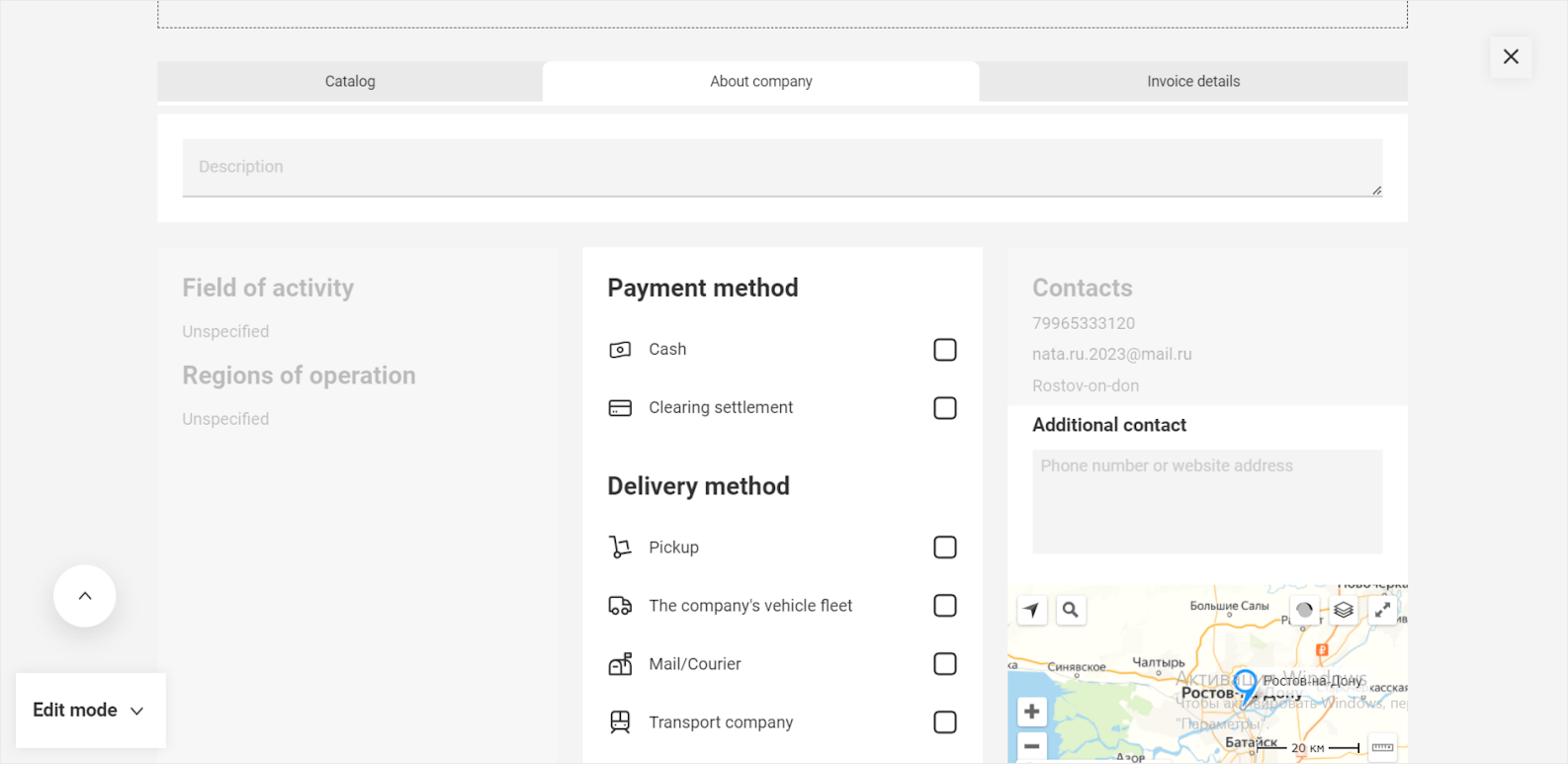
5. Add information about the company, invoice details. This provides more confidence to your company and product.
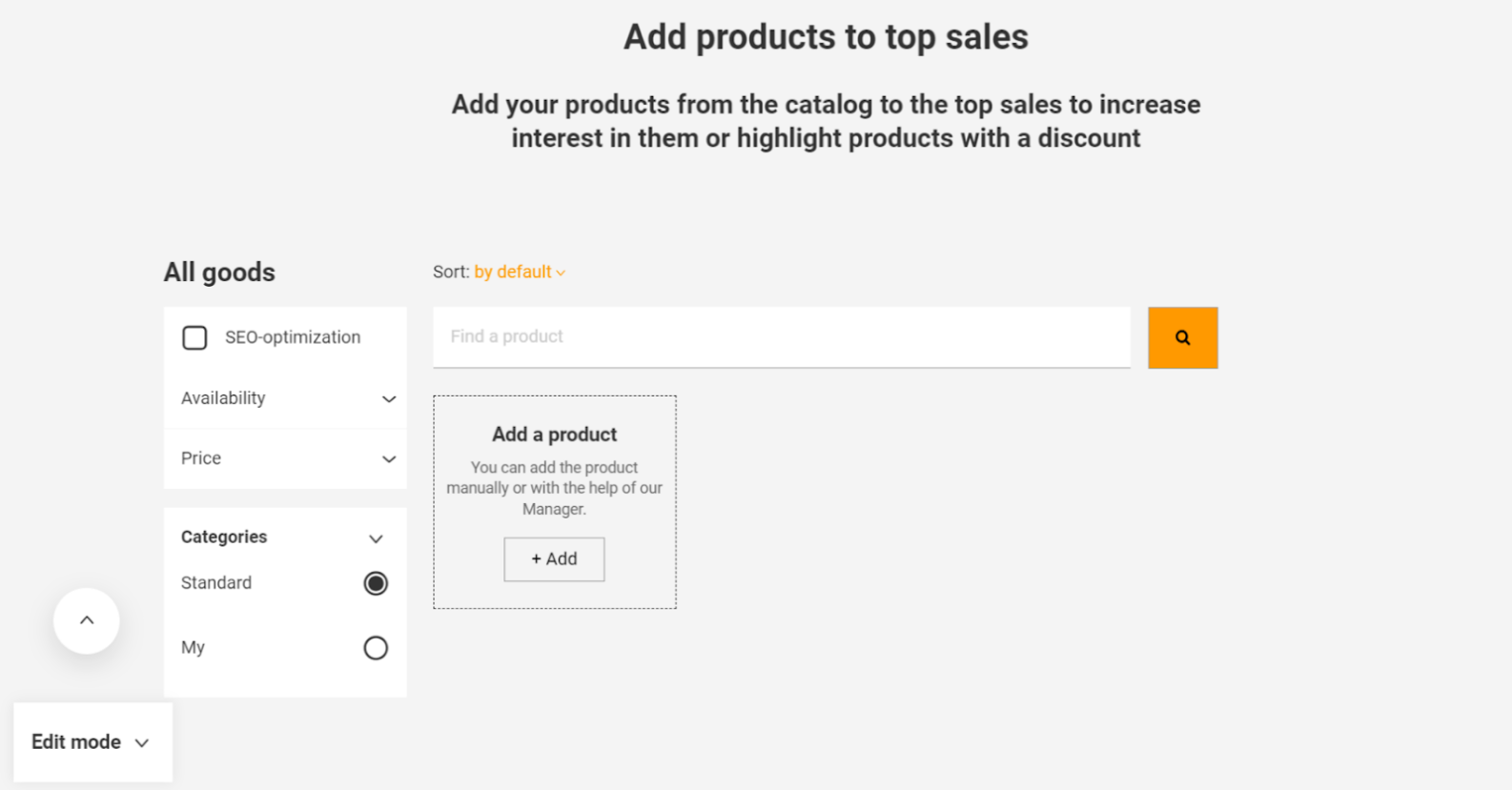
6. Add your goods into the catalog.
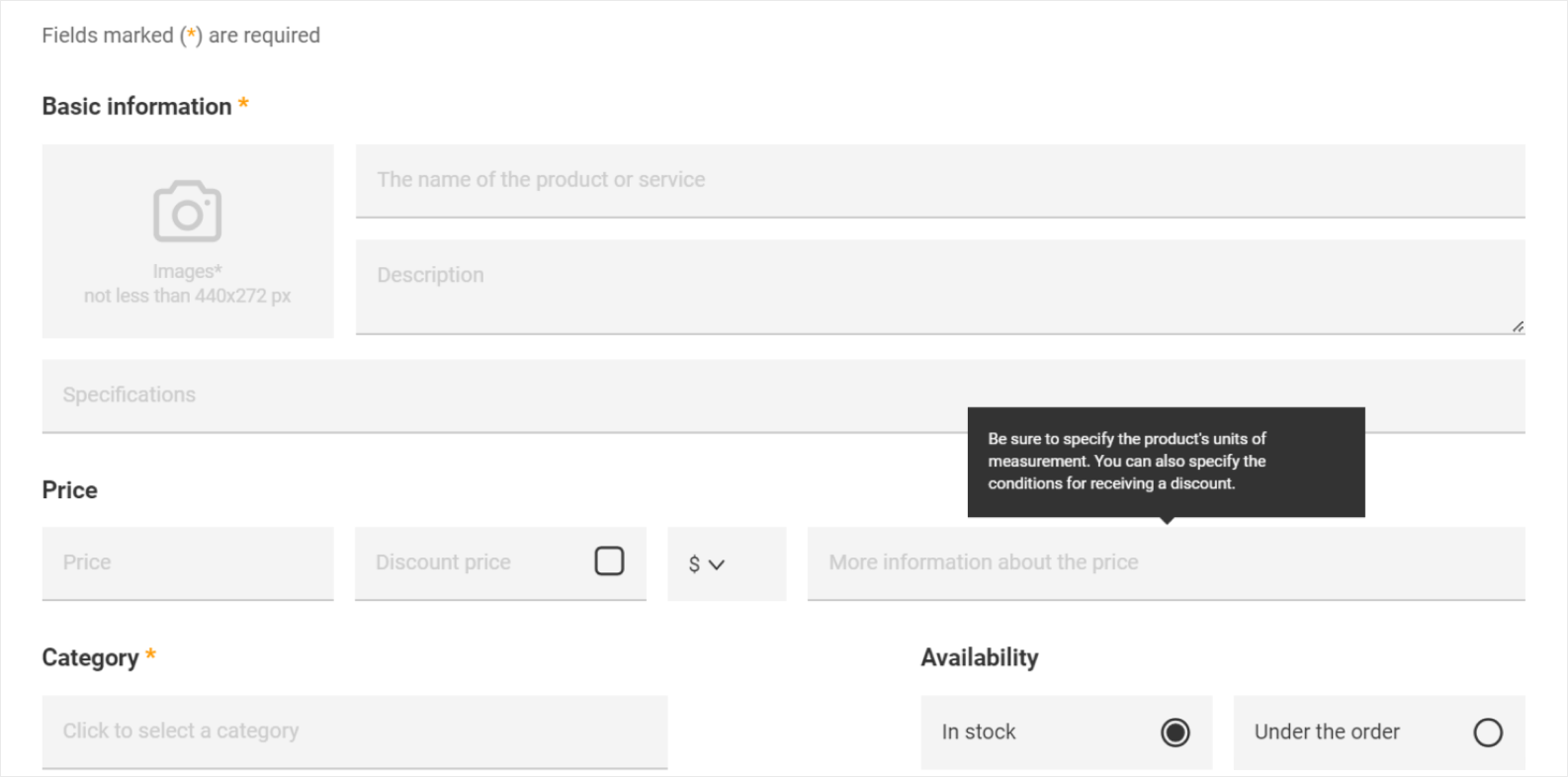
Each field has a tip which information should be placed.
On Demo users can place only 1 product, but on paid tariff Supl.biz provides different options to customers.
Part 3
How to work with a list of orders — use filters, favorites, etc. to get orders that suit you
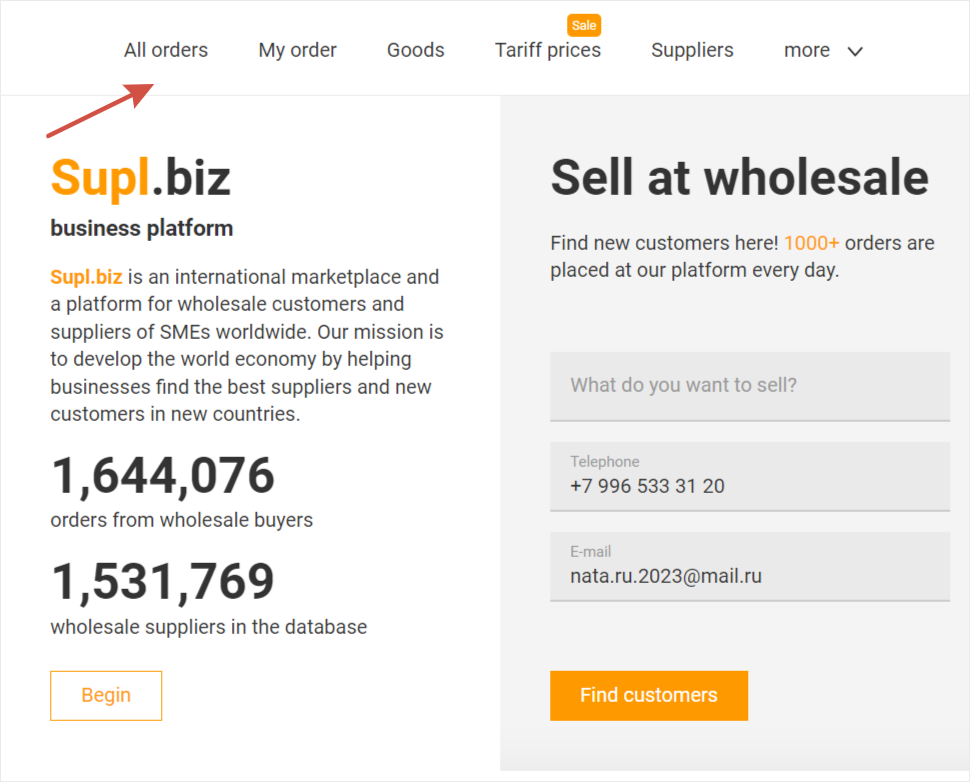
Previously you set up a profile, identified regions and areas of activity, began receiving notifications about orders by email and in your notification feed.
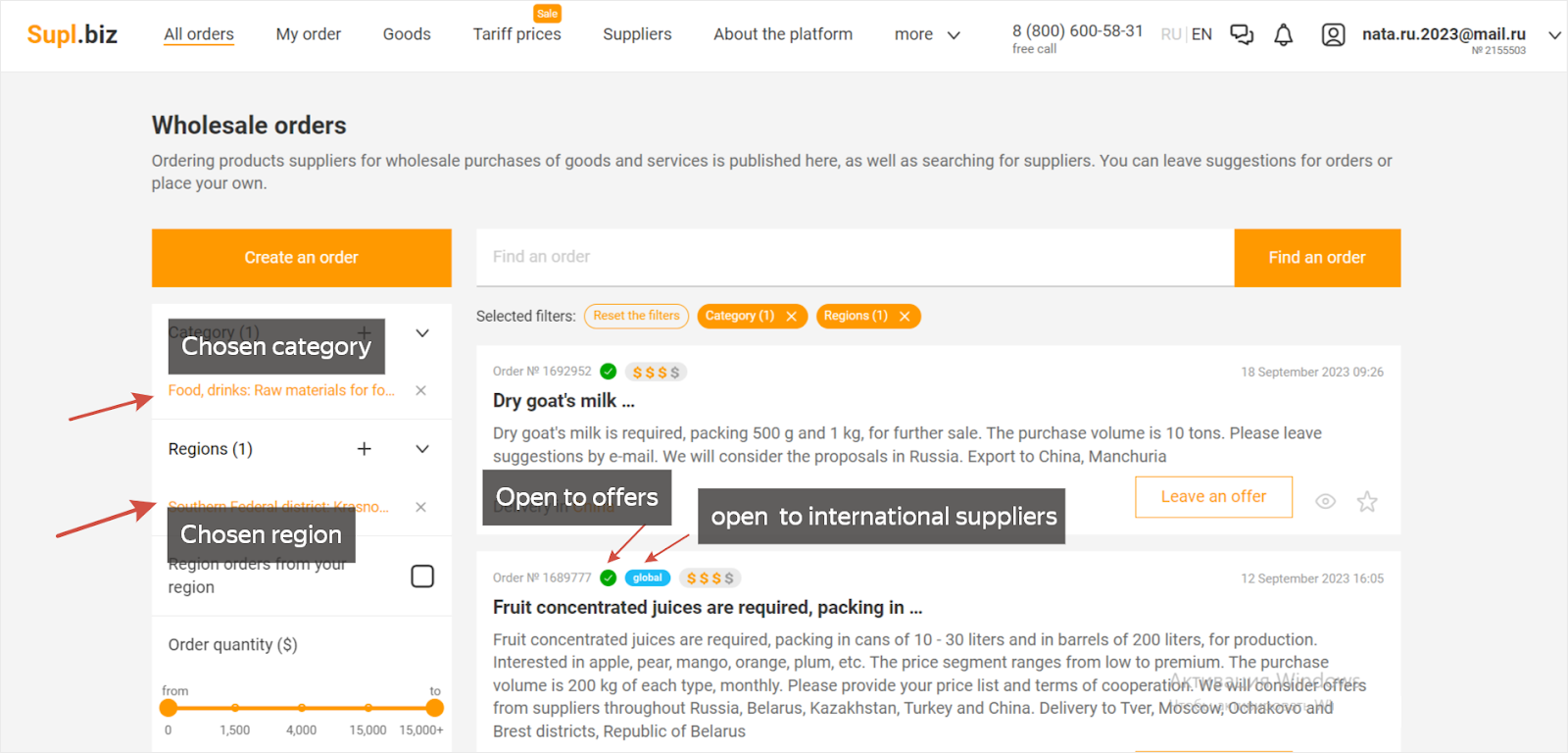
When you open All orders, you will see all updated orders for your type of the activity & regions. All orders are moderated and ready for the reply from the Suppliers.
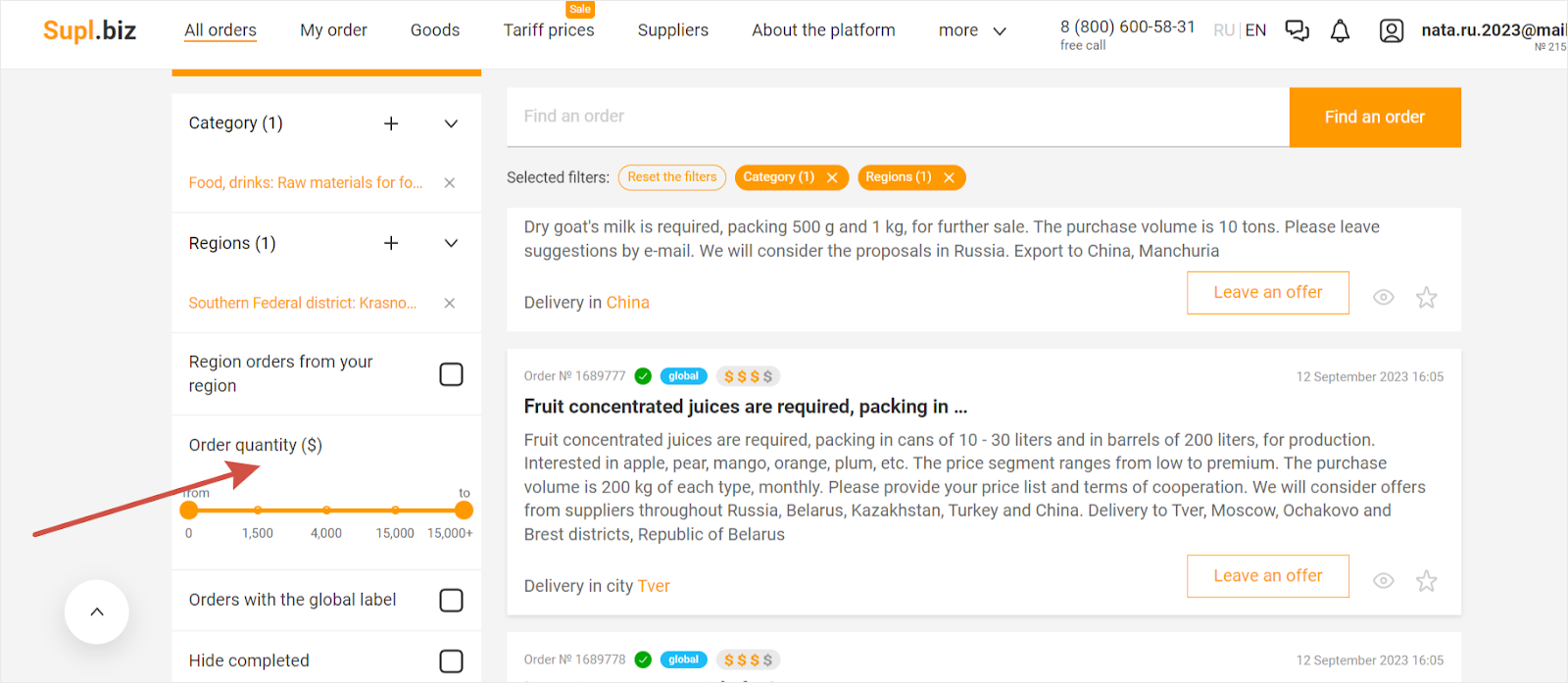
Also all customers when placing the order should specify the amount of the purchase, and the Supplier can choose requests, just moving the slider.
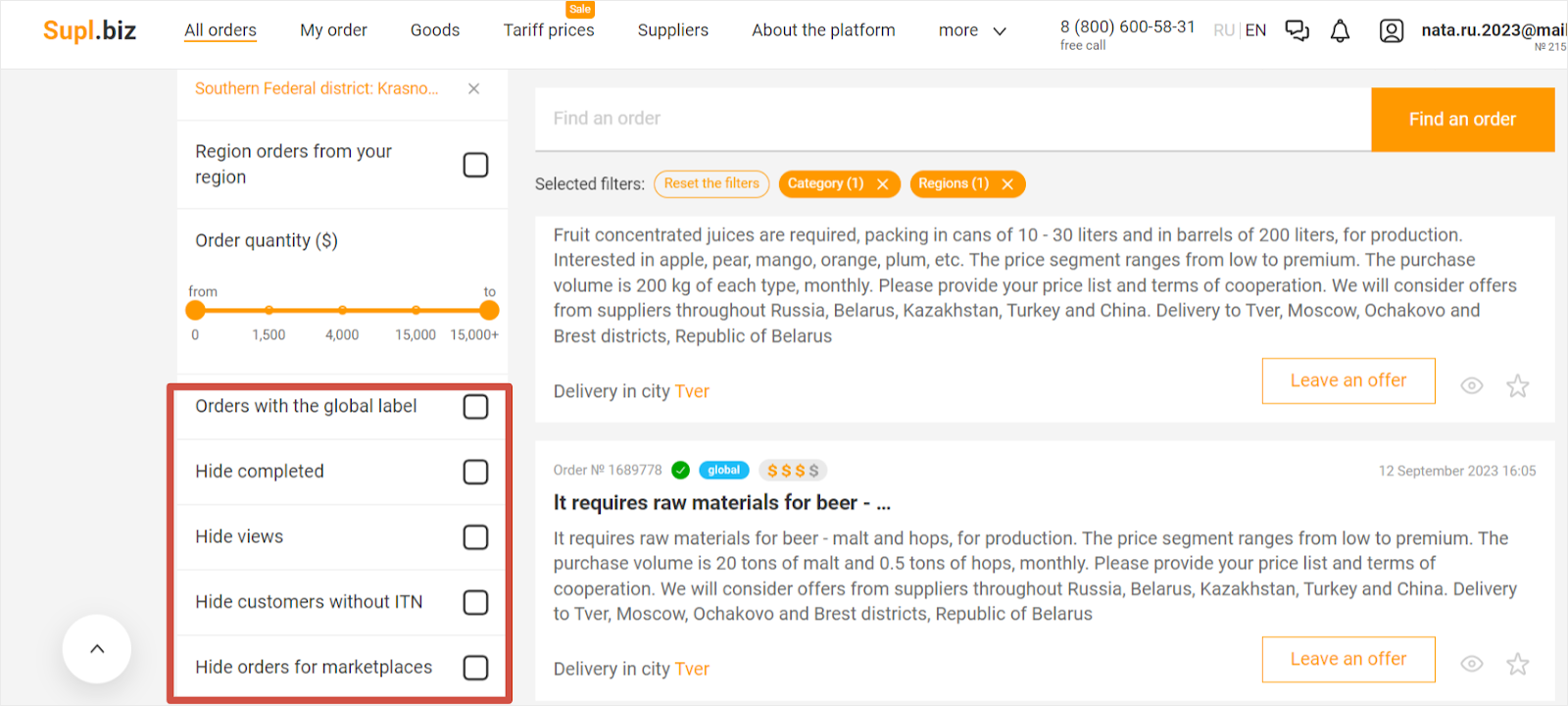
You also can set up the interface of the page with orders, filling in checkboxes.
Orders with global label — customer is ready to work with the international suppliers.
Hide completed — to hide orders with chosen suppliers.
Hide views — to hide orders, that you’ve already seen and see only new ones.
Hide orders for the marketplace — if you do not want to sell to the resellers on B2C marketplaces.
Part 4
How to place an offer for the customer and conduct a dialogue with him via the platform
Go into the interesting order to read all the details of the request.
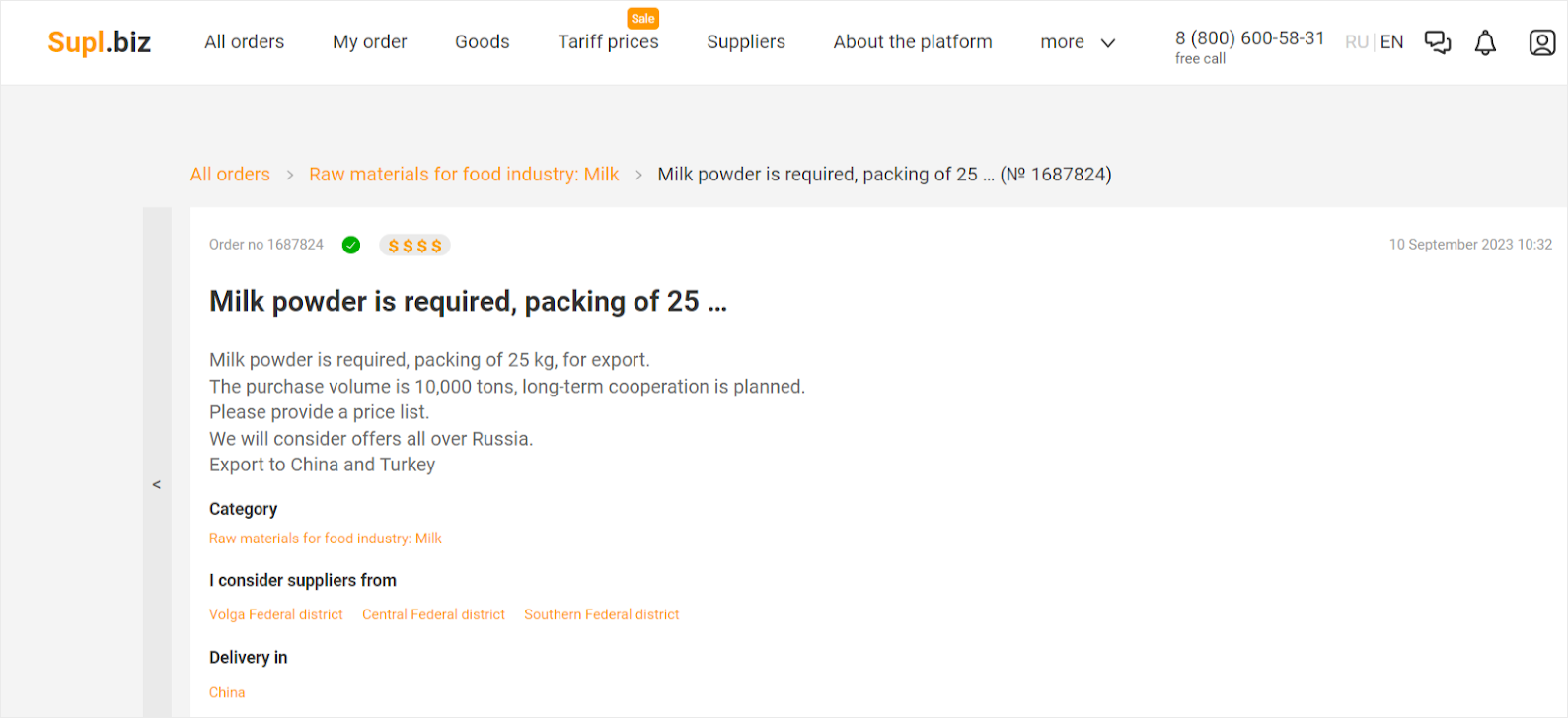
Below the order you can see the form for you to leave an offer. You can leave an offer for the required product or offer analogue. You can also place the info about your company, ask questions, and highlight your advantages.
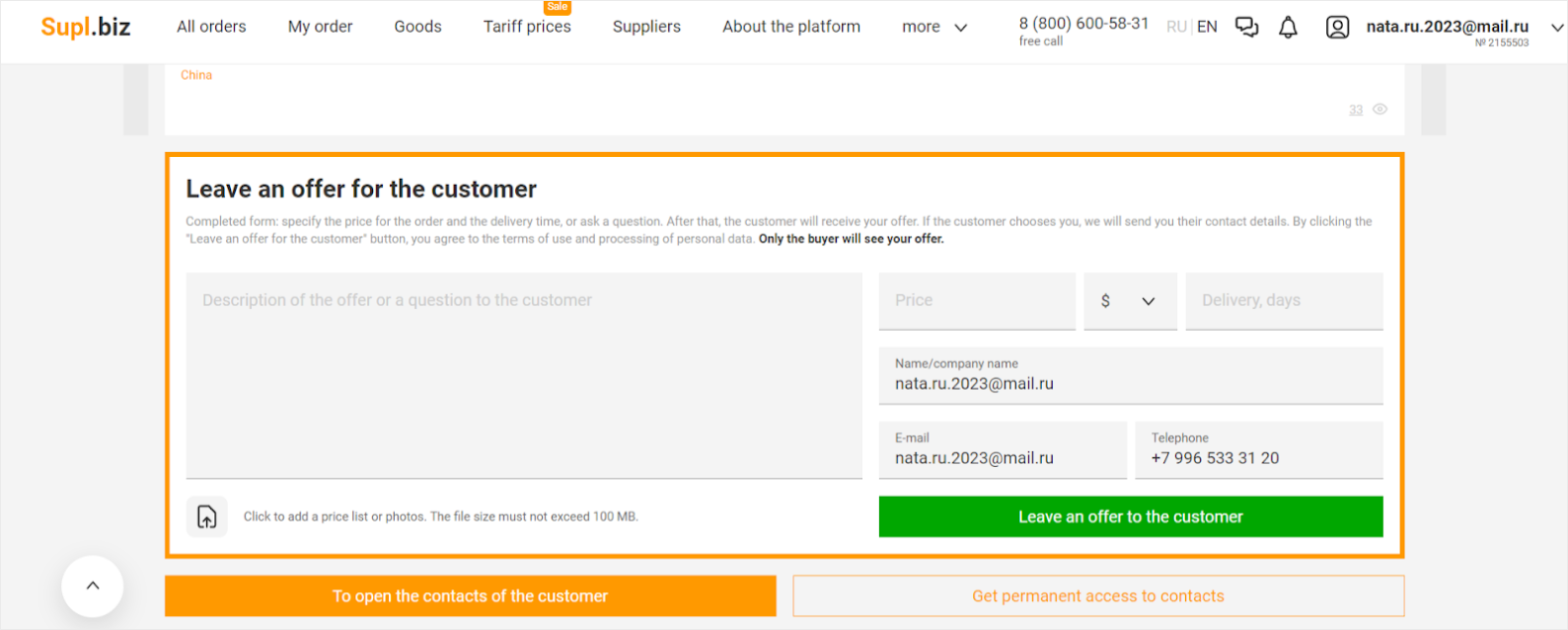
You can attach a file with a presentation, price list to your message. Leave the price (wholesale) and terms of the delivery.
When you fill in all fields, press the green button Leave an offer to the customer. After that the customer will receive on his email a notification that somebody left an offer for his order.
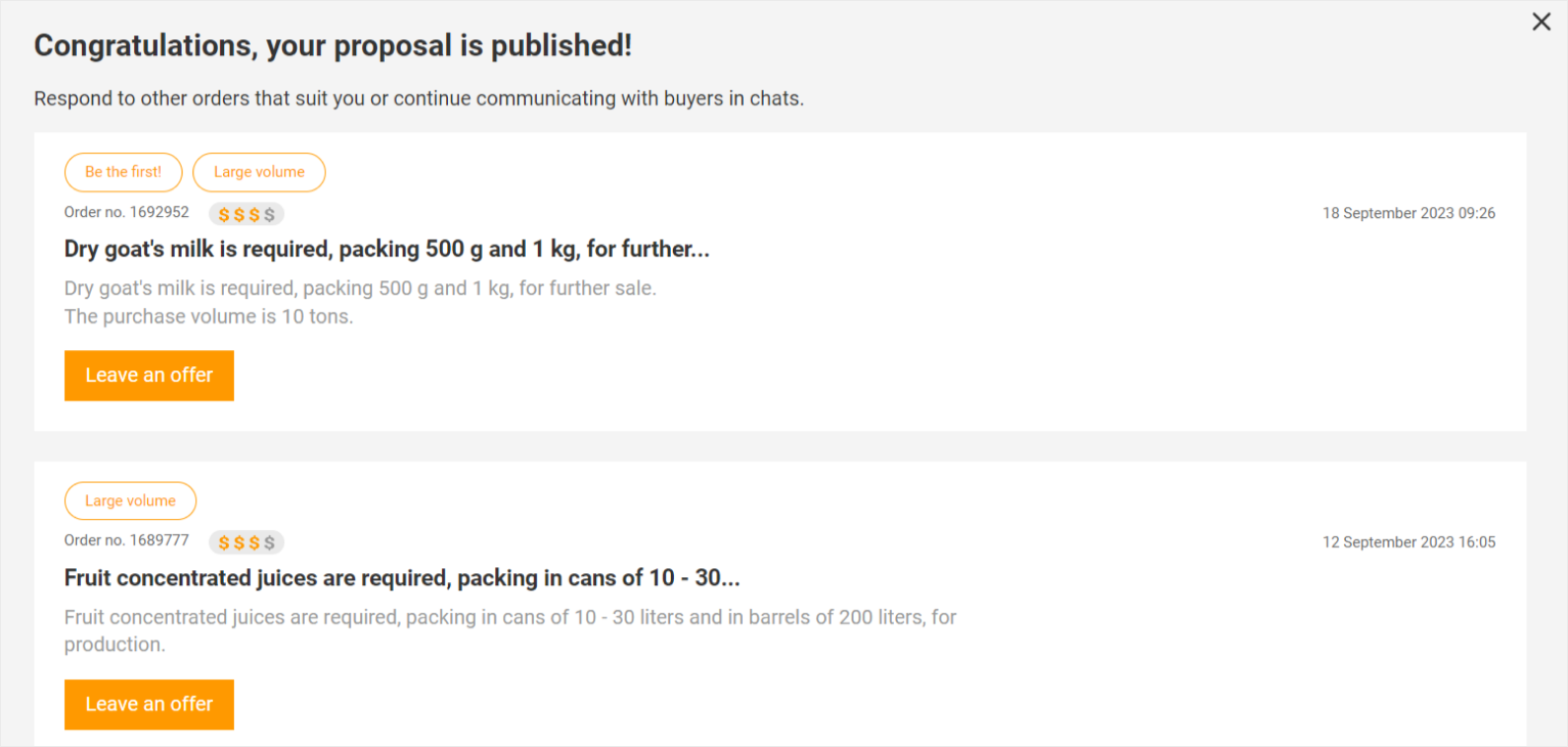
You can see the other orders that suit your activity and leave an offer.
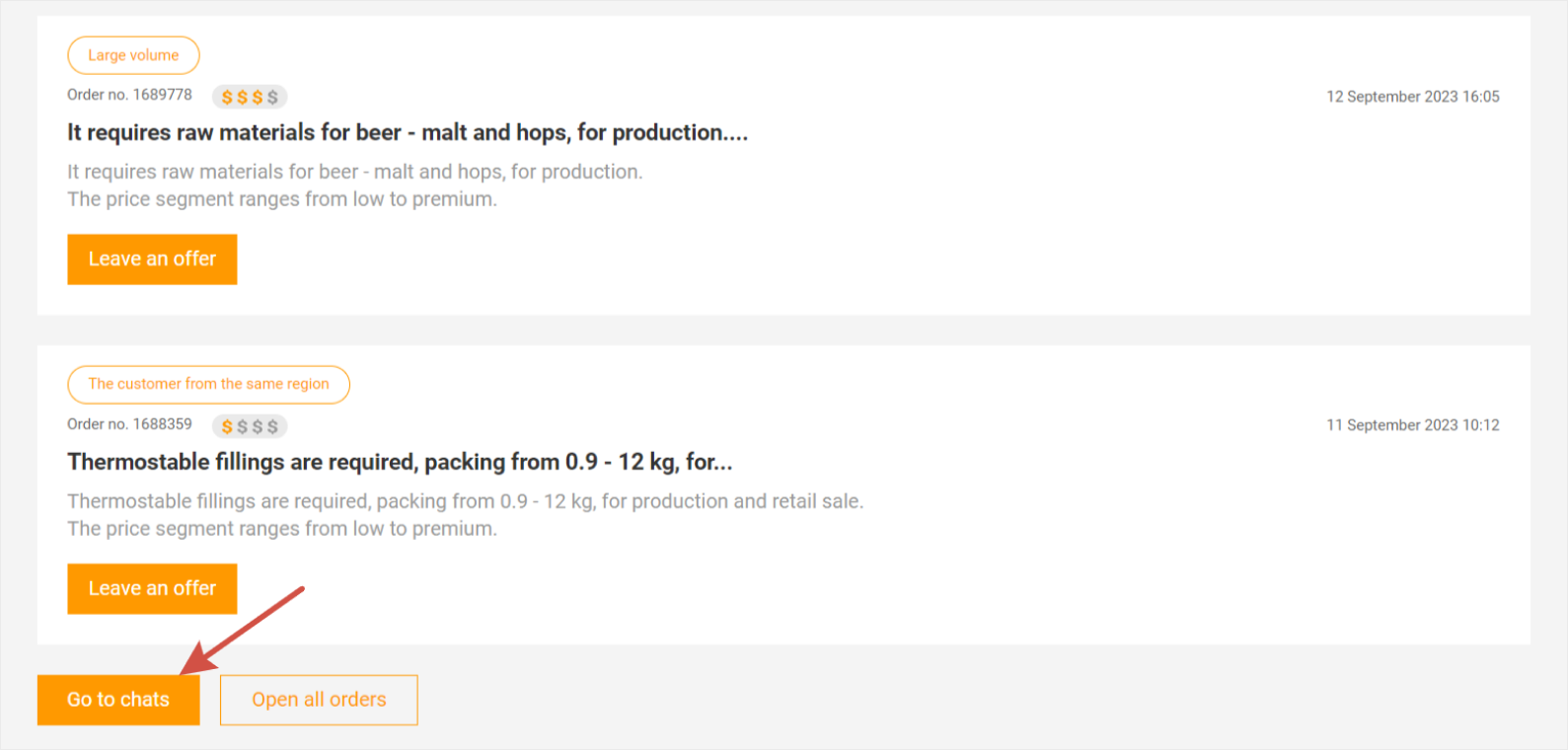
Go to the bottom of the page and you will see the button Go to chats — and have a chat with the Customer.
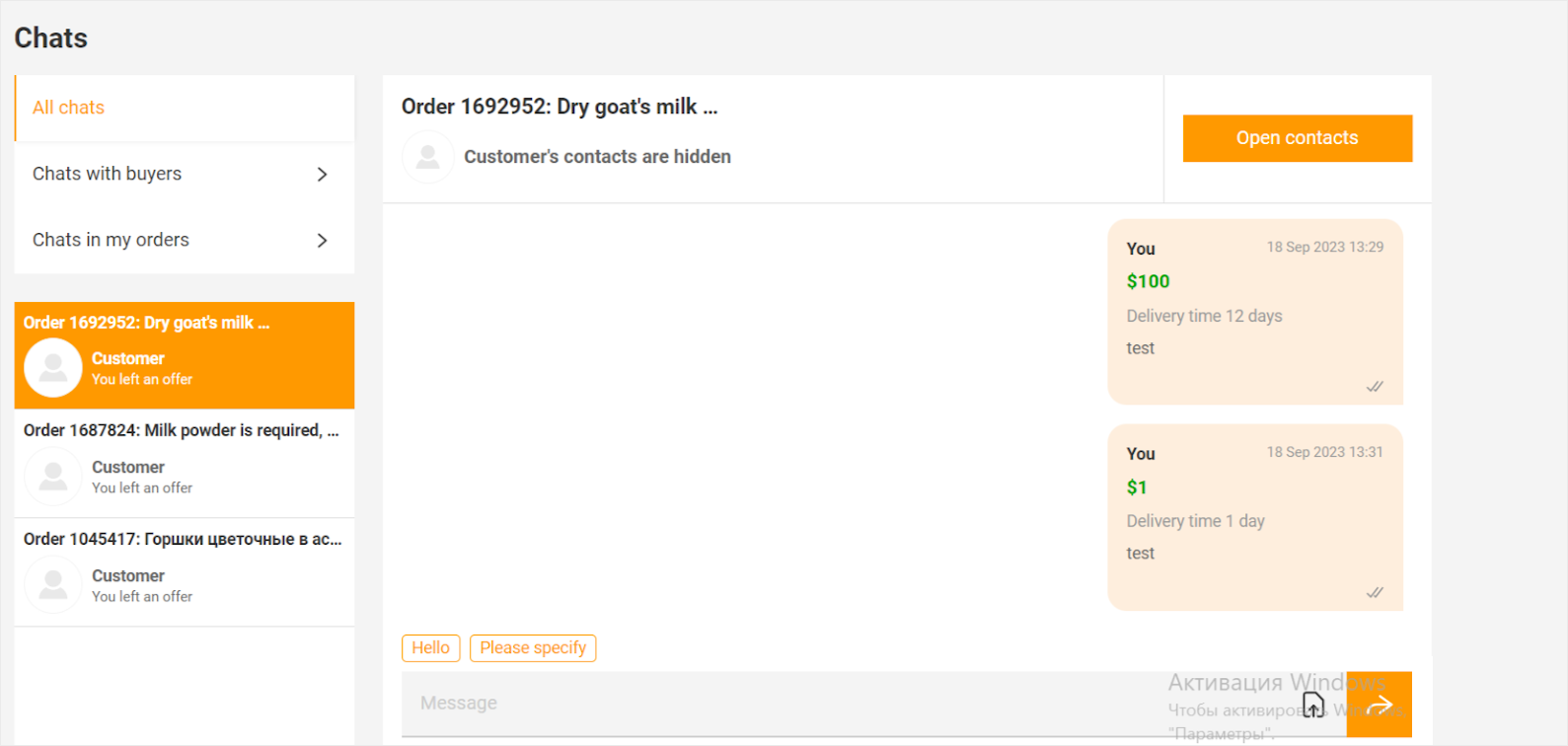
*On Demo the customer can leave only 10 offers per month and can see only 25% of placed orders. More opportunities on paid tariffs.
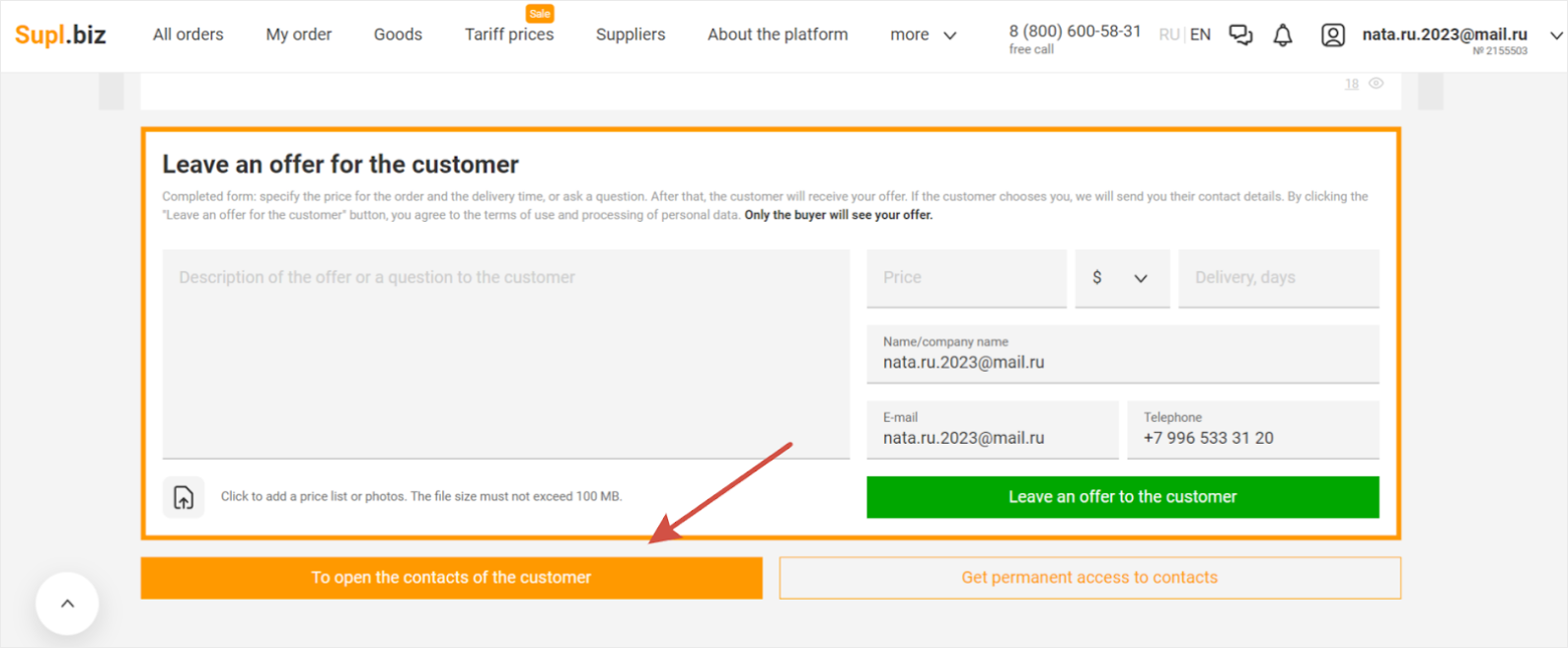
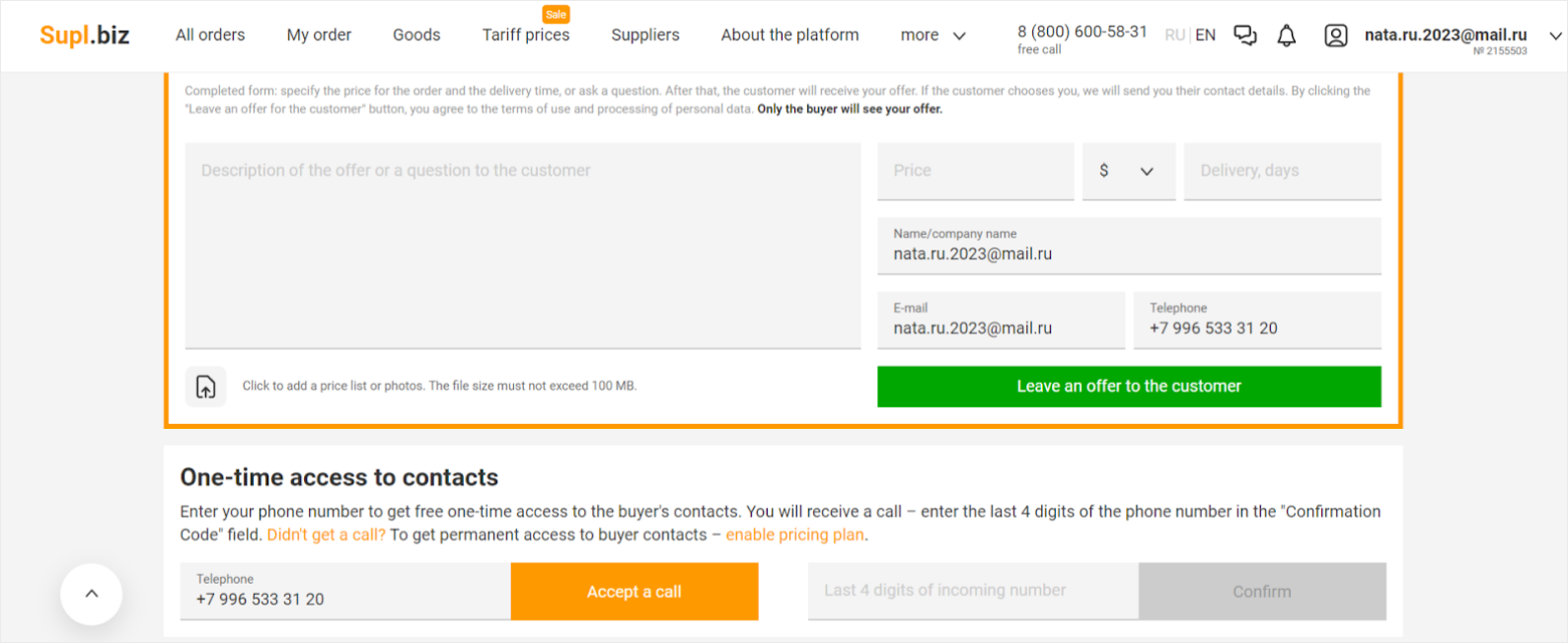
If you do not want to wait for the reply from the customer, you can open the contacts by yourself.
Part 5
How to upload your products to the online catalog on the Supl.biz website
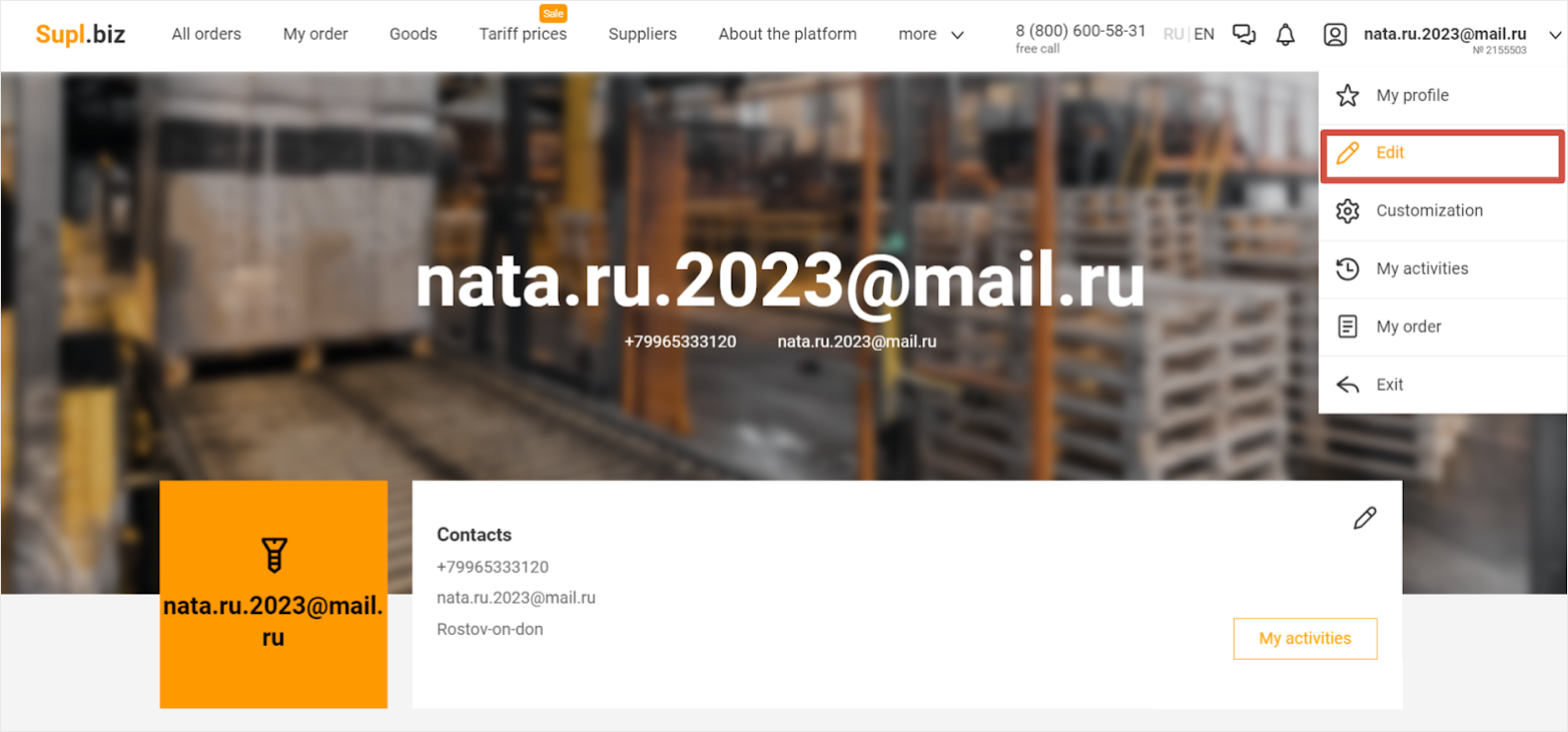
Go to the Edit mode in your profile.
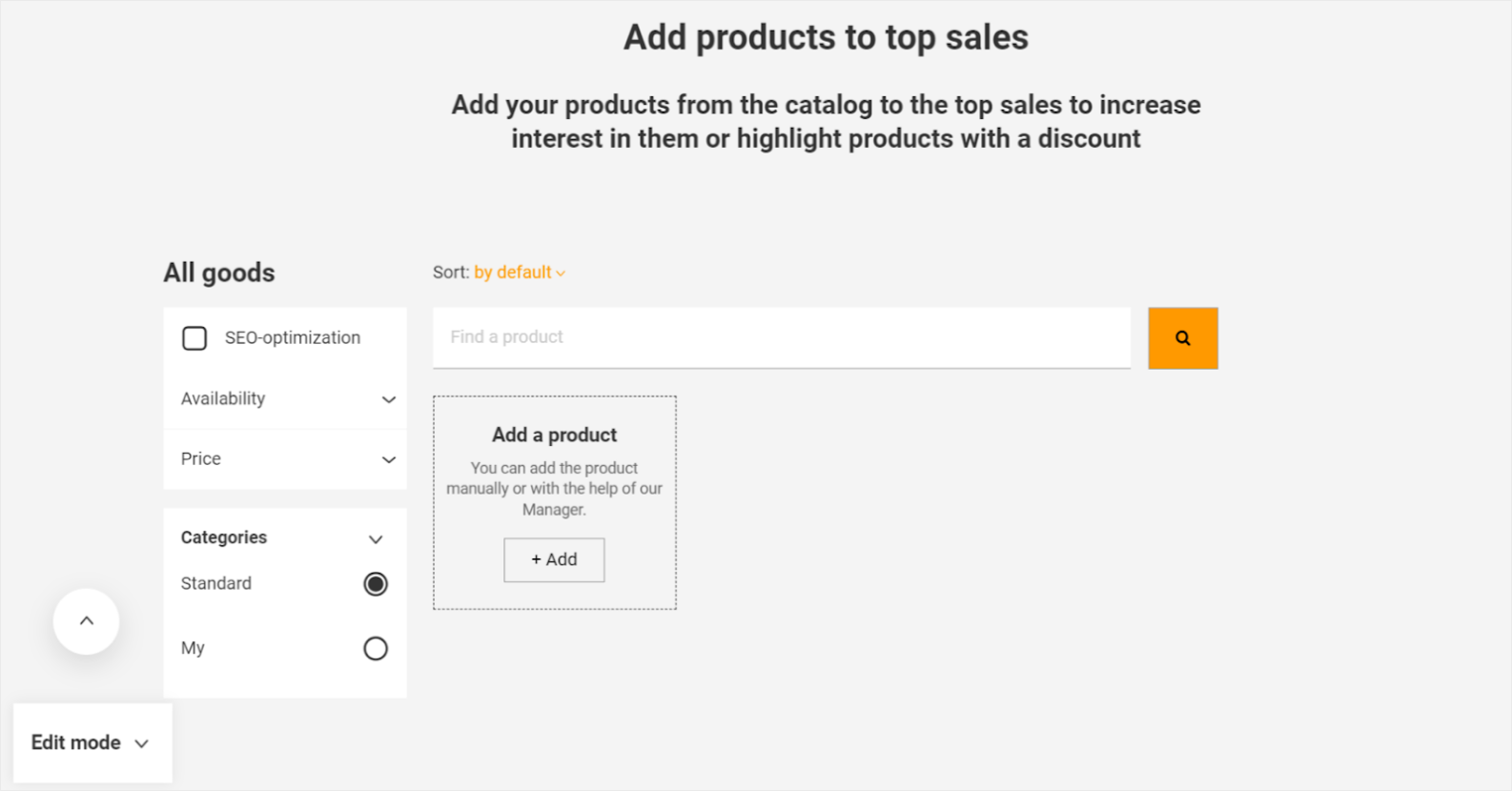
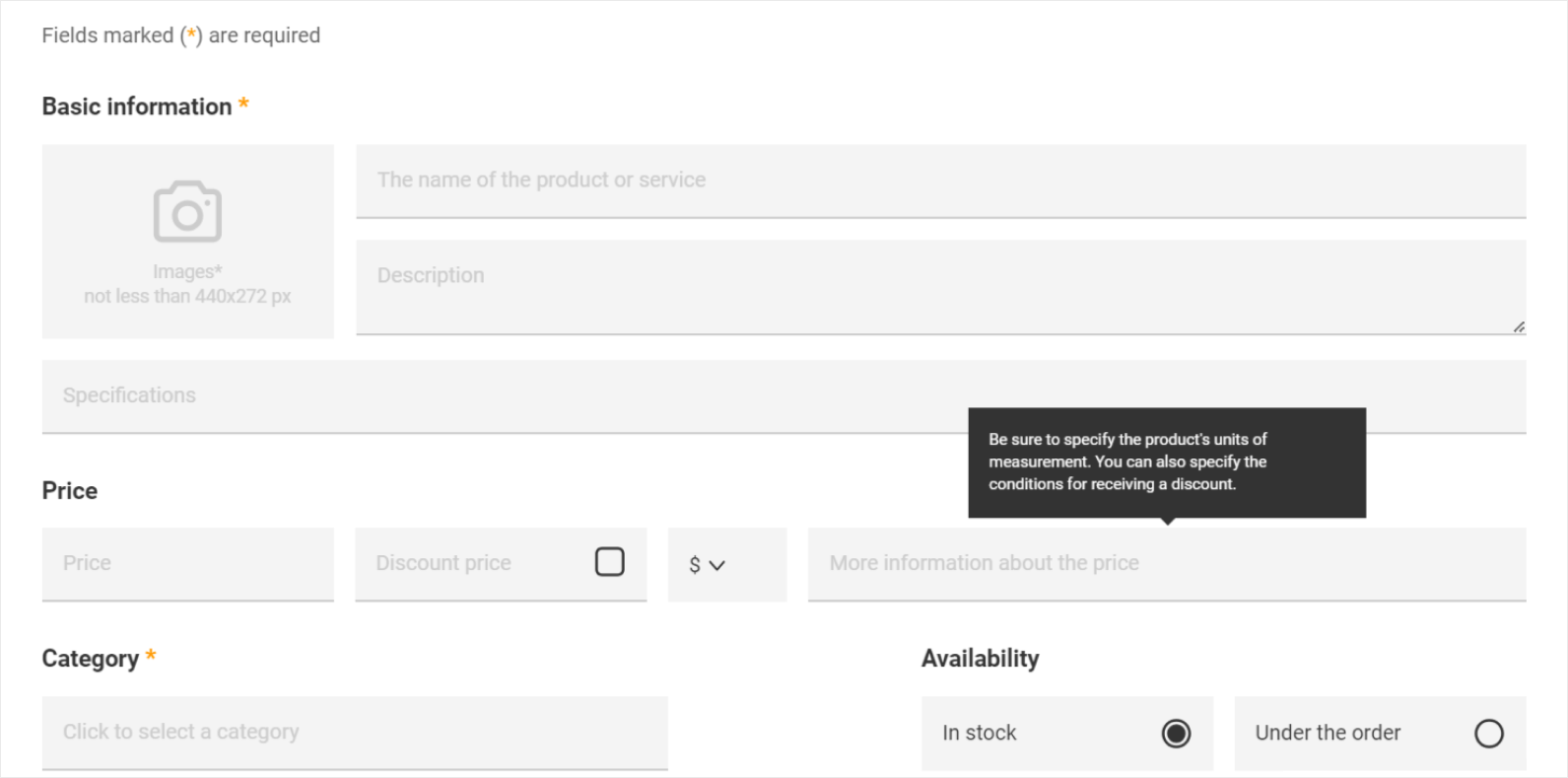
Each field has a tip which information should be placed.
On Demo users can place only 1 product, but on paid tariff Supl.biz provides different options to customers.
When you finish with fields, customers can find your product in the webpage Goods and write you a message or call you. This page acts as an on-line shop for the B2B companies, who want to buy wholesale.
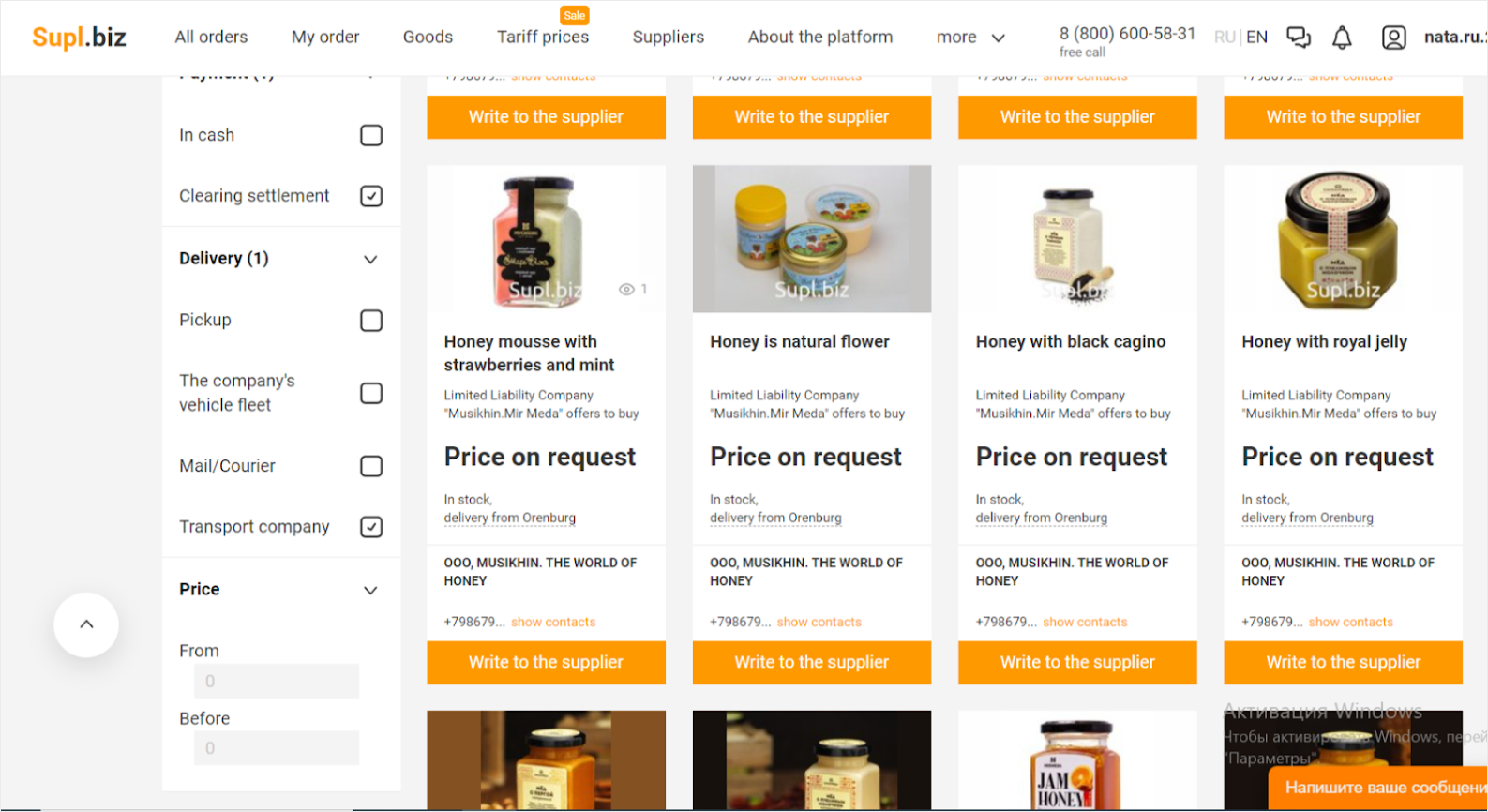
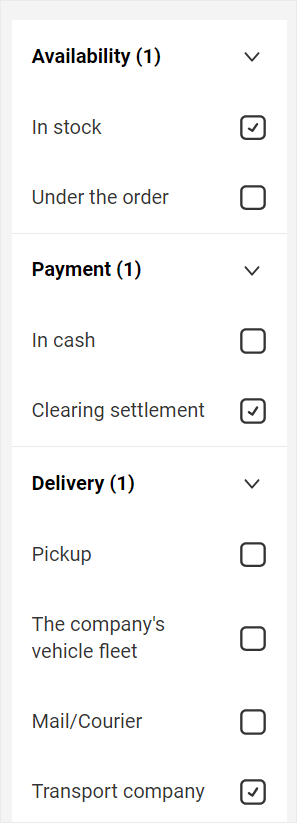
In the online catalog customers also can set up the search and find the proper goods & terms of payment & shipment terms.
This means as better you fill in all the data about the product and delivery & payment details, as better info you will provide to the customers and will appear in the search.
Part 6
Tariffs on the Supl.biz
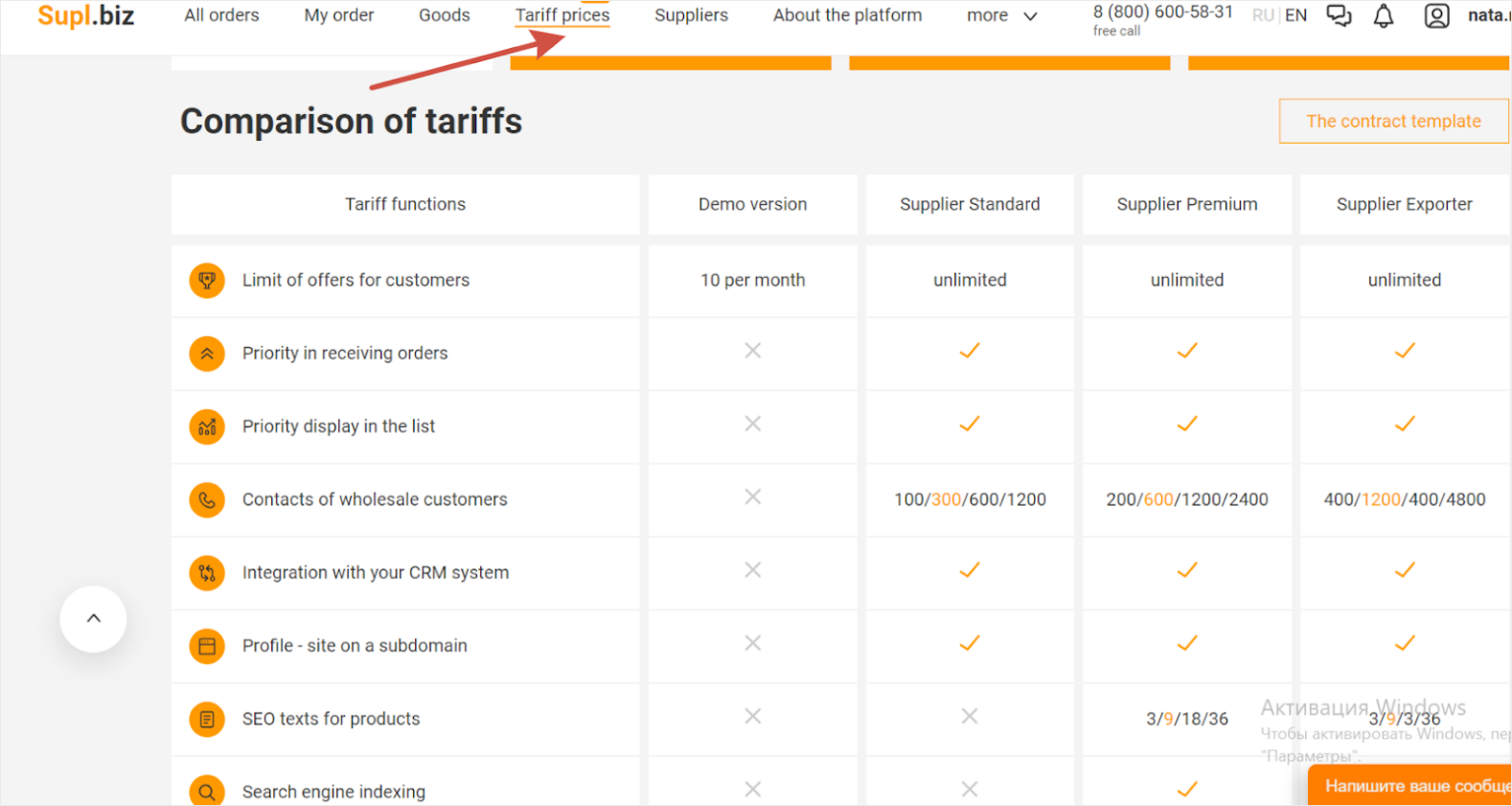
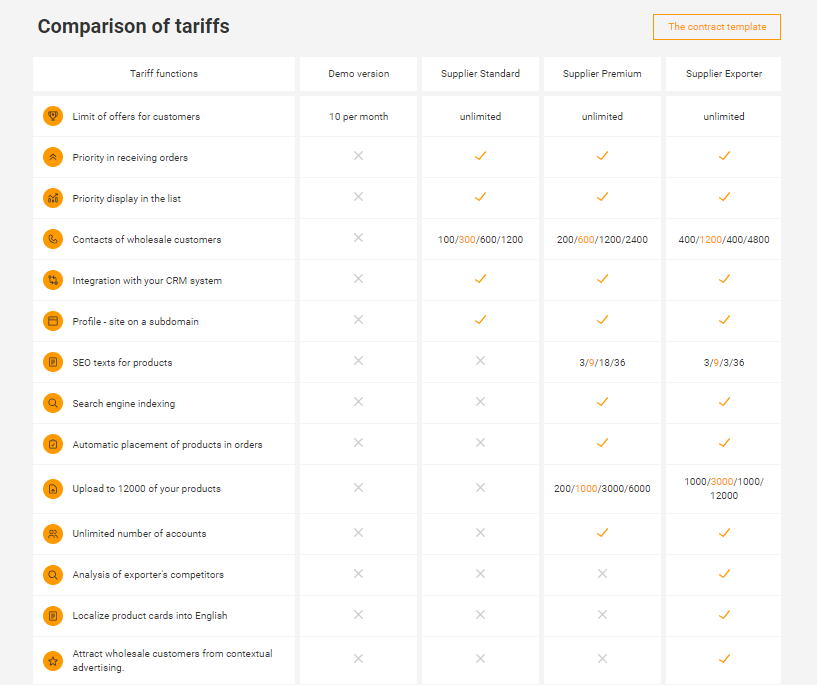
Go to the page Tariffs and find all the information and comparison of the functions of the Demo & paid tariffs.
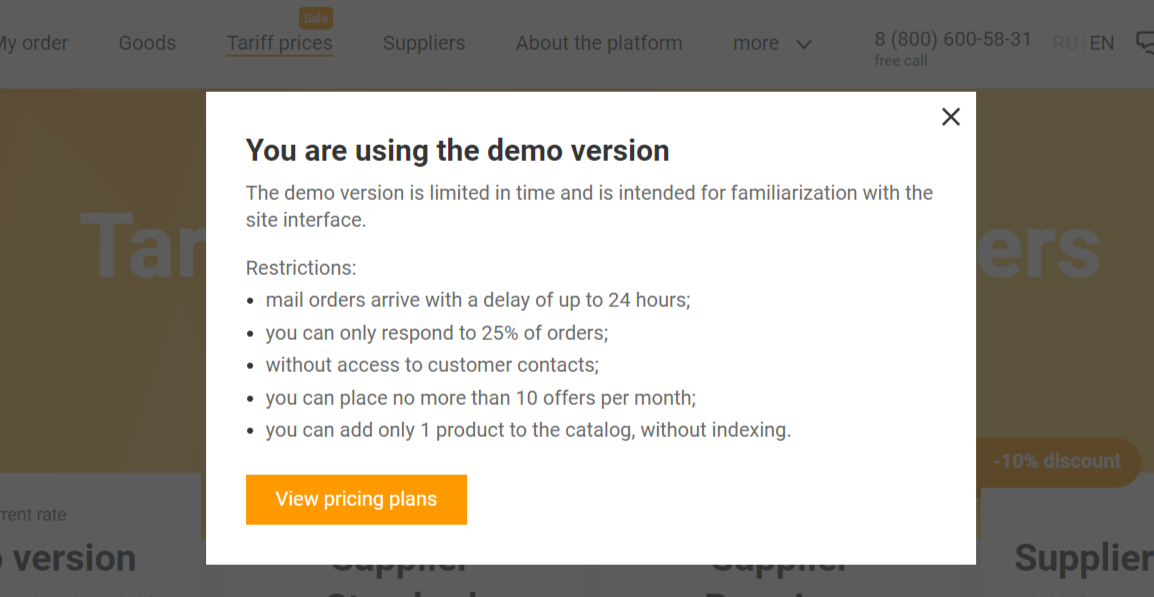
The main features of the Demo version are below
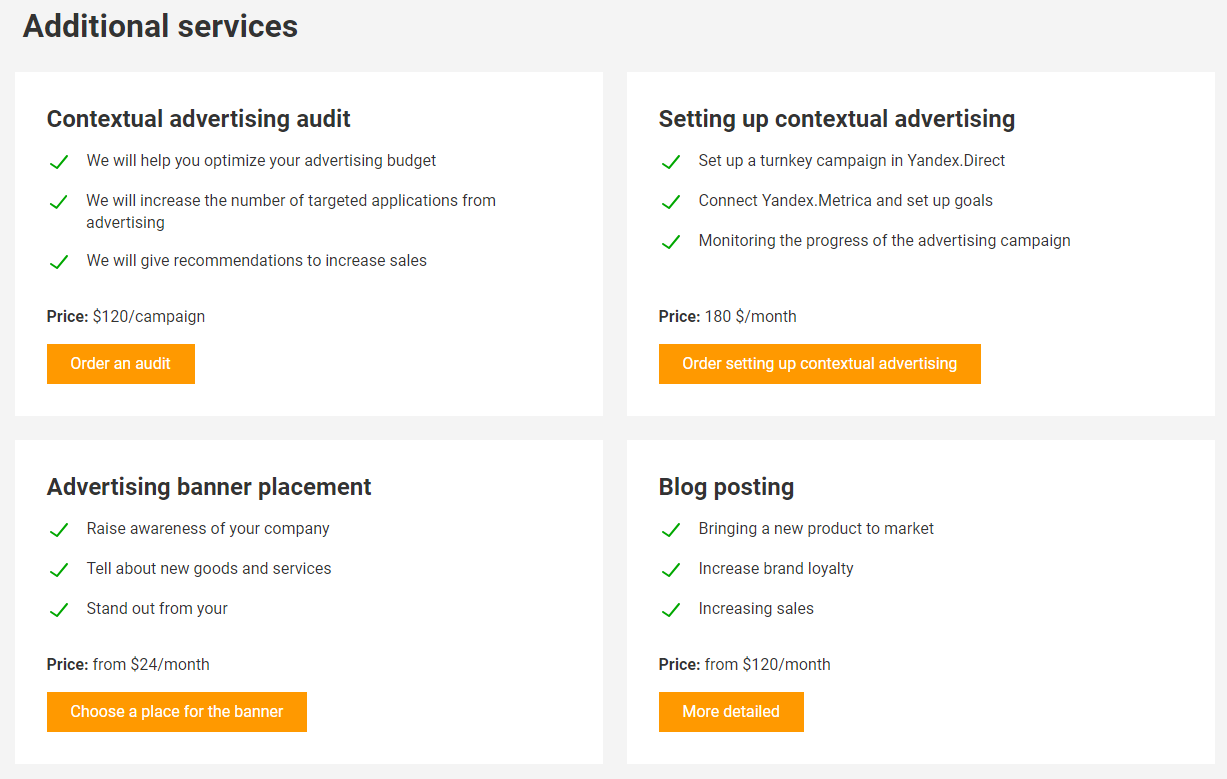
You can also choose the additional services for your business.